FUTGenie Settings: Every Option Explained
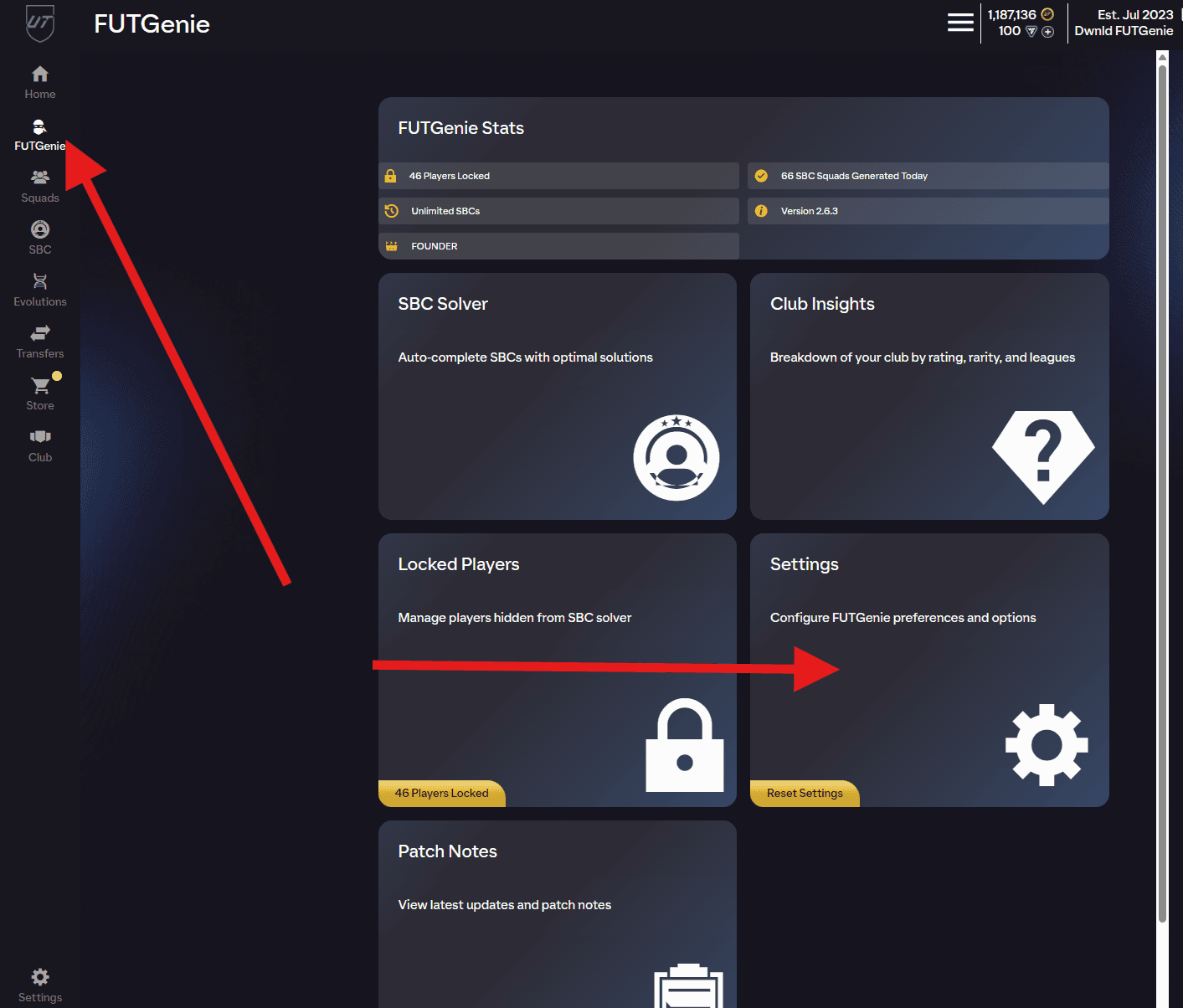
The Settings panel is where you tune how FUTGenie behaves in the EA FC 27 web app, from card overlays to pack animations to keyboard shortcuts. This guide walks through every section in the order it appears on screen, with what each setting does and its default.
Where to find it
Open the FUTGenie tab in the EA web app and tap the Settings tile.
Display
- Show Prices in Squad (ON by default): shows a price and Genie Grade pill on cards in squad views.
- Show Prices in Club (ON by default): the same overlay on club and list views.
- Show extra info on player cards (ON by default): adds skill moves, weak foot stars and position labels to large card views.
For more on what these overlays show, see The FUTGenie Hub.
SBC
- Exclude Active Squad Players (ON by default): keeps players in your active squad out of SBC solutions, so a solve never dismantles your main team.
Packs & Rewards
- Stack packs (ON by default): groups identical packs together in the store so they are easier to manage.
- Skip reward validation (OFF by default): skips FUTGenie's extra checks when claiming rewards, for a faster but less cautious flow.
- Store pack quick open max price threshold (100,000 by default, up to 1,000,000): the store's Quick Open buttons, for coins and for FC Points, only show on packs whose coin price is at or below this. Set it to 0 to turn them off.
- Animation style: Standard EA animation, Dynamic animations (the default), Always classic or Always walkout. See Pack tools for what each one plays.
- Only show animation for specials (OFF by default): when ON, only special cards (promos, TOTW and other non-base versions) get an animation.
- Minimum player rating to trigger animation (95 by default): a pulled player needs at least this rating for the animation to play.
- Ruleset for unassigned organise (Default by default): which of your Auto Open rulesets the Organise button uses on the unassigned pile. An inline ruleset editor sits below the dropdown so you can edit rules without leaving Settings. See Bulk pack auto open for how rulesets work.
Player picks
- Auto-select player picks (ON by default): lets FUTGenie pick for you when a player pick pops up.
- Player picks priority: whether auto-select favours Price (the default) or Rating when comparing the options.
Keyboard
This section is hidden on phones.
- Enable Keyboard Shortcuts (ON by default): master switch for all FUTGenie keyboard shortcuts. See Keyboard shortcuts.
Help
- Show tutorial hints (OFF by default): turning this ON reveals small ? icons next to FUTGenie features across the web app. Tapping one opens the guide for that feature (like the one you are reading now). If you are new to FUTGenie, switch it on for a while.
Transfer Market
- One click Buy Now (ON by default): buy an item with a single press instead of a confirmation step.
- Global price for TOTW players (ON by default): uses cross-platform pricing for in-form cards, which trade thinly on single platforms.
Excluded Leagues
Select leagues to exclude from solver solutions. Open the Select Leagues dropdown, tick the leagues you never want spent as fodder, and each appears as a removable chip. The header shows how many leagues are selected, or No leagues excluded.
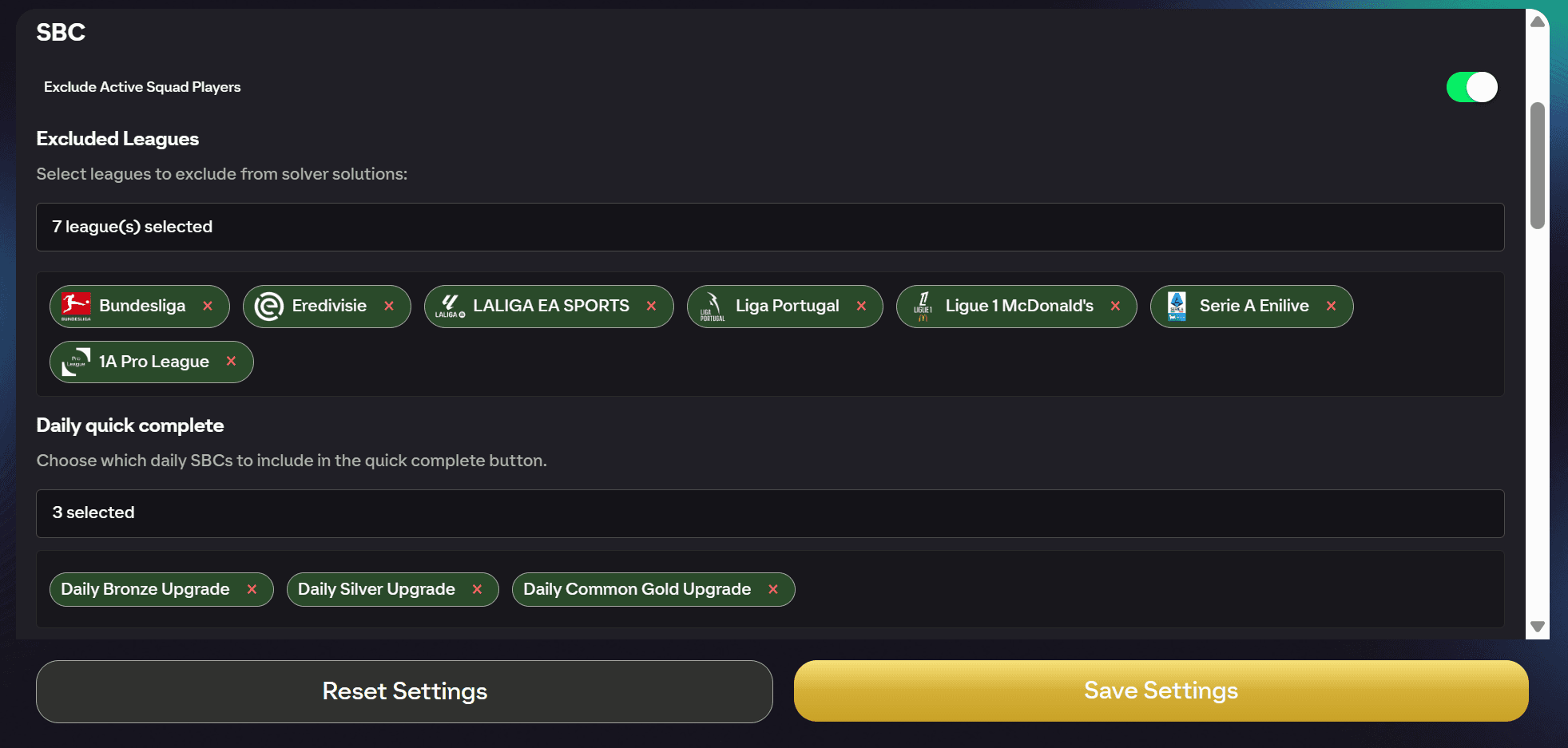
Daily quick complete
Two controls live here: Select SBCs picks which daily SBCs the one-tap Quick Complete button runs, and Manage solve preferences opens a dedicated set of solver options for those runs. Full walkthrough in Daily Quick Complete.
Keyboard Shortcuts and Custom Shortcuts
Rebind FUTGenie's built-in keys per screen, and manage the shortcuts you have assigned to buttons yourself via right-click. Both are covered in Keyboard shortcuts.
Saving
Changes are applied with Save Settings at the bottom of the panel (you'll see Settings saved confirm it). Reset Settings puts everything back to the defaults listed above.