Keyboard Shortcuts for the FC 27 Web App
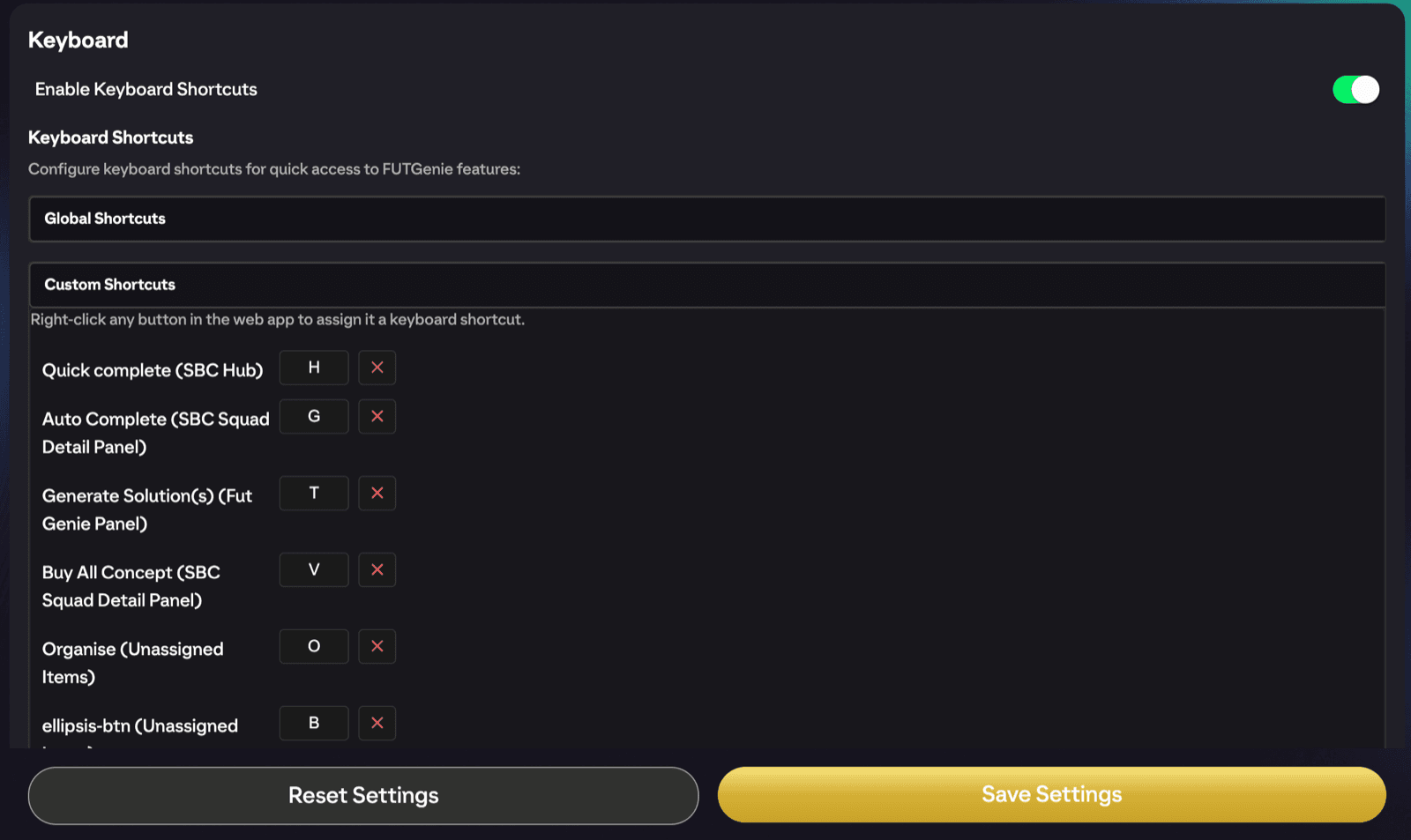
FUTGenie adds keyboard control to the EA FC 27 web app. A couple of sensible defaults are built in, everything is rebindable, and the headline trick is that you can right-click any button anywhere in the app and put it on a key.
Turning it on
Shortcuts are controlled by Enable Keyboard Shortcuts in FUTGenie Settings under Keyboard. It's on by default. The whole feature is unavailable on phones (no keyboard, no section).
The built-in defaults
Only two keys are bound out of the box:
- Escape: navigate back. If a solve is running with the loading shield up, it cancels the solve. If a popup is open, it closes the popup. Otherwise it goes back a screen, just like the back button.
- Space: confirm. On confirmation popups, Space presses the OK/confirm button, and Escape presses cancel.
That's it. Everything else is up to you.
Rebinding keys
Head to Settings and find the Keyboard Shortcuts section. Shortcuts are grouped into collapsible sections per screen. To change one, click its key button, and when it shows Press key to bind, press the key you want. If the key is already taken, the conflict is flagged so you can pick another.
Custom Shortcuts: bind any button
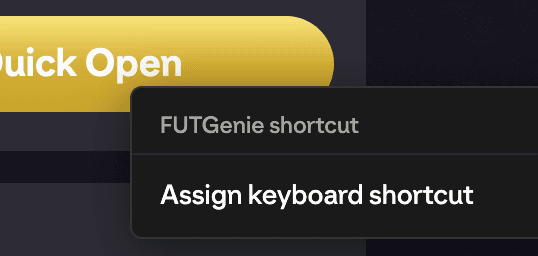
This is the part worth setting up. Right-click any button in the web app (EA's or FUTGenie's) and a small FUTGenie shortcut menu appears:
- Assign keyboard shortcut: you'll see Press a key... (Esc to cancel). Press a key and it's bound, confirmed with Shortcut assigned:. If the key is taken you'll see Key in use by: with the existing binding, and the odd button can't be recorded (Could not record this button).
- Change shortcut key: rebind a button that already has a shortcut.
- Remove shortcut: unbind it (Shortcut removed).
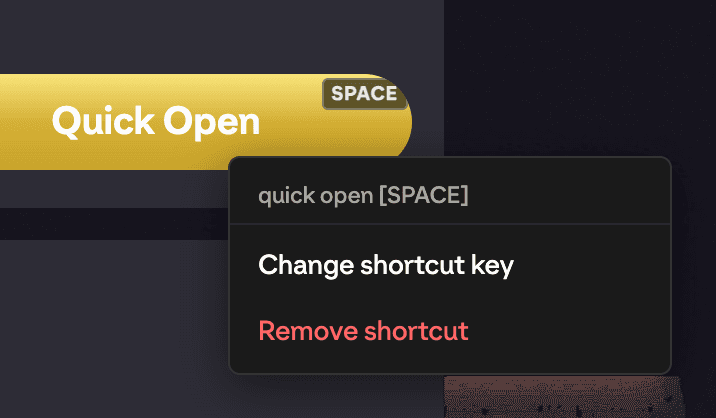
Everything you've assigned this way is listed under Custom Shortcuts in Settings, alongside the built-in bindings.
Ideas to steal
- Put Quick complete on a key and clear your dailies without touching the mouse.
- Bind the compare/buy buttons you spam while sniping.
- Bind list navigation buttons you press dozens of times per session.
Good to know
- Shortcuts only fire on the screen the button lives on, so the same key can safely do different things in different places.
- If a shortcut seems dead, check the master Enable Keyboard Shortcuts toggle first.