Auto Open Packs in EA FC 27 (Bulk Pack Opener)
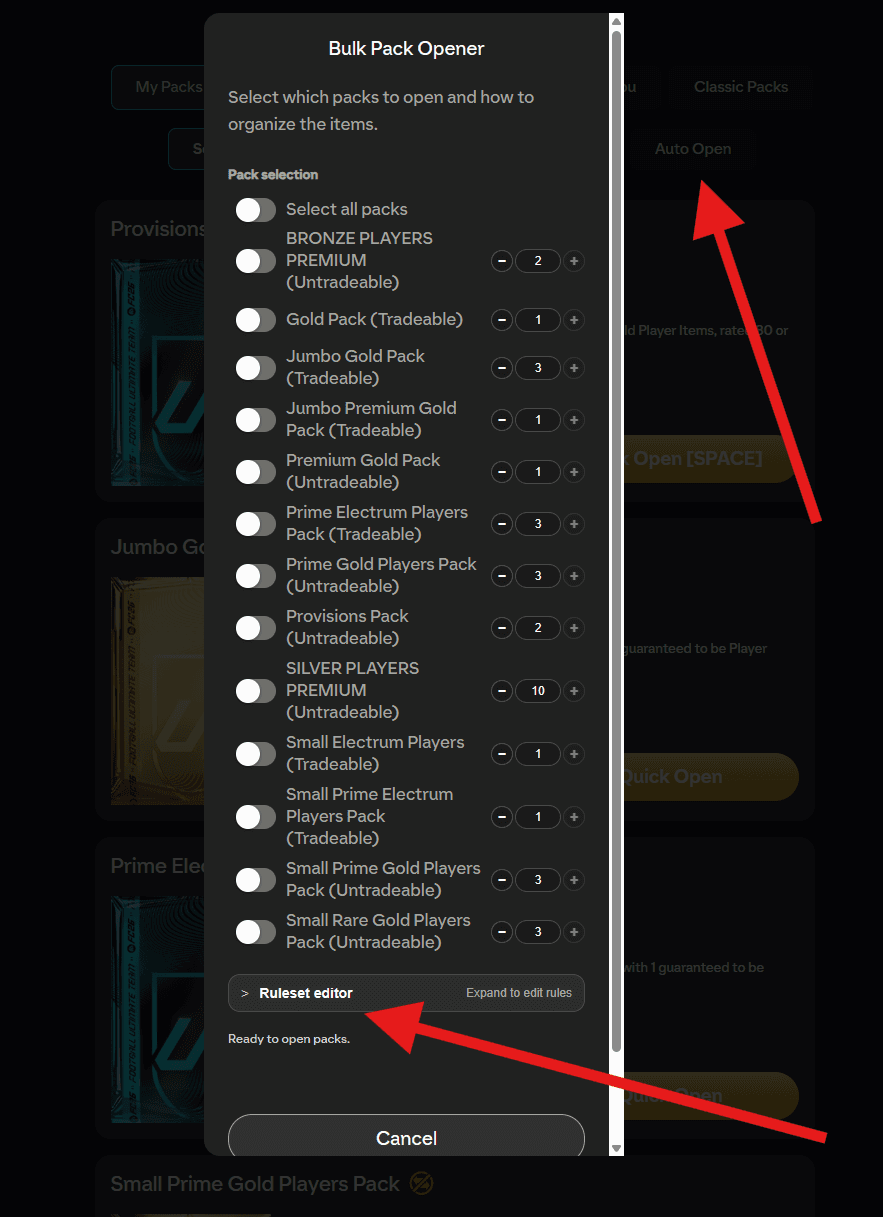
The Bulk Pack Opener opens as many EA FC 27 packs as you like in one run, with no animations, and sorts every item into your club, transfer list, storage or quick sell based on rules you control.
Where to find it
Go to Store and open My Packs. FUTGenie adds a filter bar at the top of the pack list, and the Auto Open button sits in that bar next to the Tradeable, Untradeable and other filter chips. Pressing it opens the Bulk Pack Opener popup.
Selecting packs
The popup lists every pack group you own, each with its own toggle and a count selector so you can open some of a pack type rather than all of them. Use Select All Packs to toggle everything at once. You need at least one pack selected before the run can start.
Choosing a ruleset
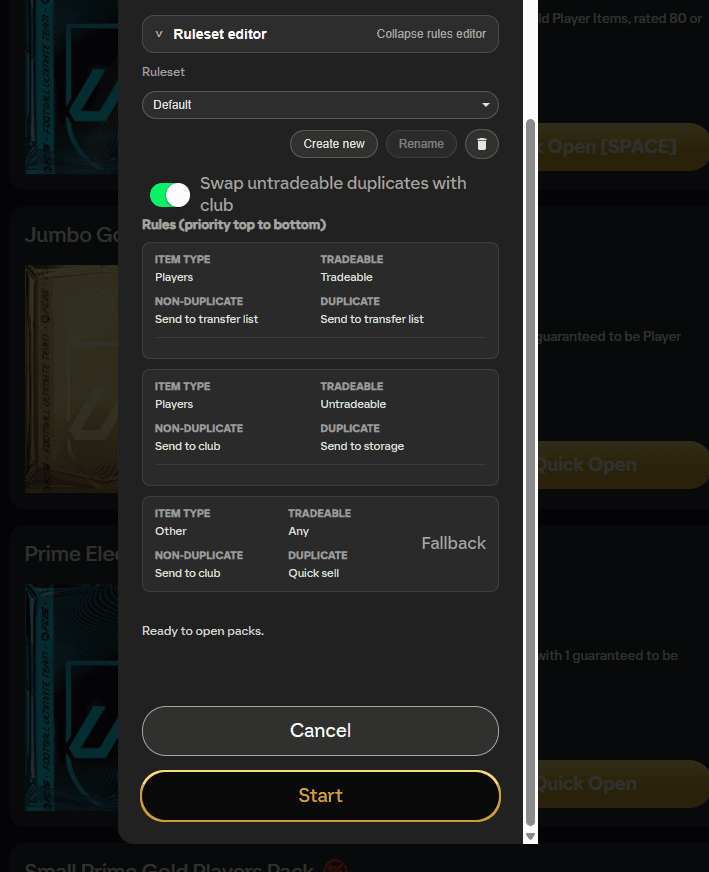
A ruleset decides where opened items go. The Ruleset row has a dropdown containing Default plus any custom rulesets you have made, along with:
- Create new, which makes a fresh ruleset for you to edit (rename it to save it).
- Rename, for custom rulesets. The Default ruleset cannot be renamed.
- A trash icon to delete a custom ruleset. The Default ruleset cannot be deleted.
- Swap untradeable duplicates with club, a checkbox that is on by default. When an untradeable duplicate is pulled and your club holds a tradeable copy of the same card, FUTGenie keeps the untradeable one in the club and frees up the tradeable copy for you to sell.
Default is read-only. Its rules are shown for reference but cannot be changed, which is why Rename is greyed out and there is no way to add a rule to it. It sends tradeable players to your transfer list, untradeable players to your club (duplicates to storage), and everything else to your club or quick sell. If that is not what you want, press Create new and edit your own copy.
Editing rules
Press Expand to edit rules to open the ruleset editor. With one of your own rulesets selected, every rule becomes editable.
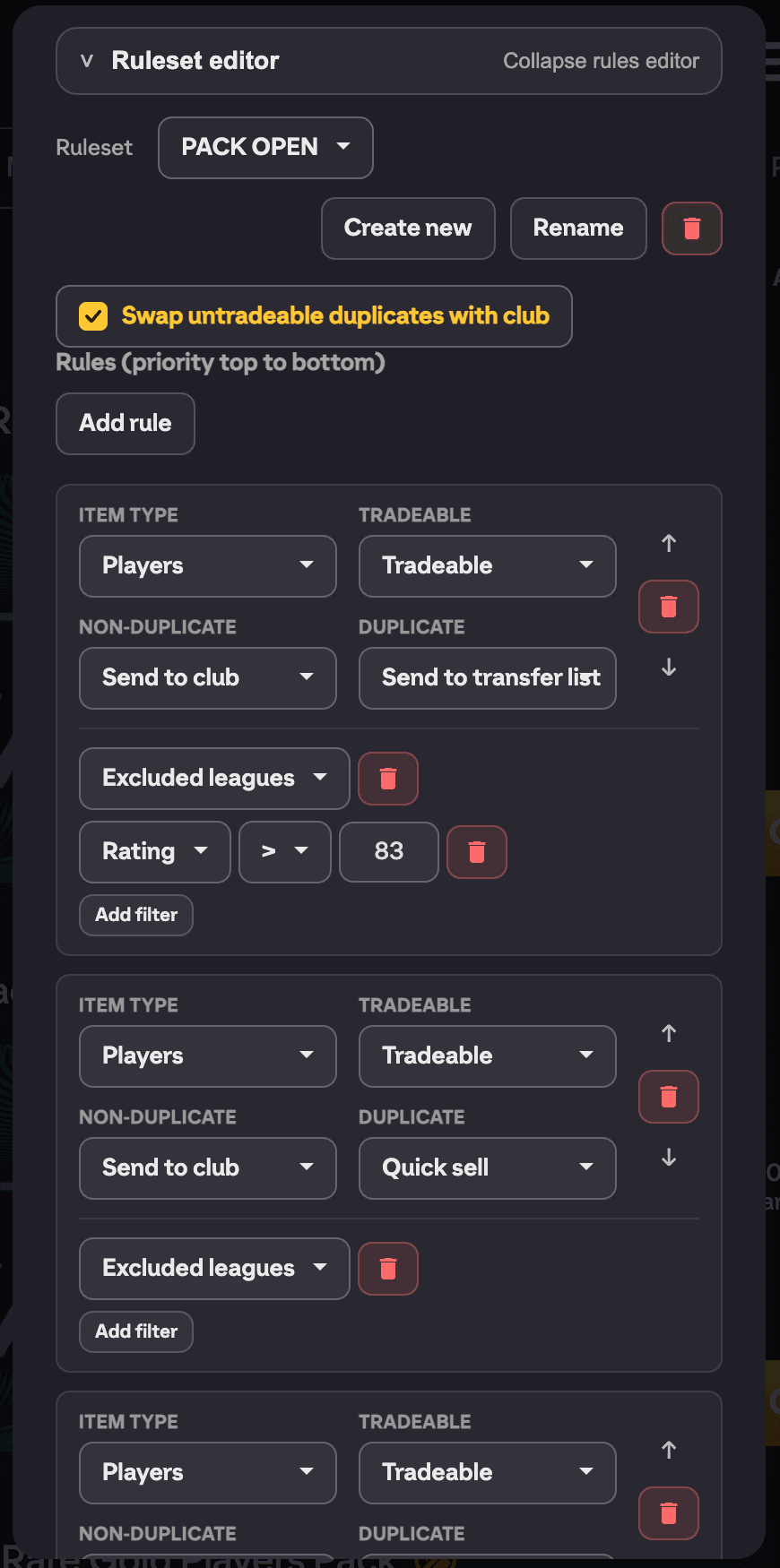
Rules run in priority order, top to bottom, and the first rule that matches an item wins. Use the arrows to reorder rules and the trash icons to delete them. Each rule has four parts:
- Item type: Players, Managers, Consumables, Visuals or Other.
- Tradeable: Any, Tradeable or Untradeable.
- Non-duplicate destination: Send to club, Send to transfer list or Quick sell.
- Duplicate destination: Send to club, Send to transfer list, Send to storage or Quick sell.
You can narrow a rule further with Add filter. Filter types are None, Rating, Excluded leagues and Rarities. Rating filters use an under (<) or over (>) operator, and the rarities filter is a multi-select. If a rule has several filters, an item must satisfy all of them for the rule to apply.
Use Add rule to add more rules (new rules join the bottom of the priority list). There is also a Fallback rule at the end that catches anything nothing else matched.
The editor validates your ruleset before a run: you need at least one rule, and there must be an Other rule (or the fallback) so that every possible item is caught. If not, you will see Invalid rules. Add an Other rule to catch all items.
Running it
Press Start and FUTGenie opens each pack in turn, showing progress like Opening pack 3 of 12 and organising the items as it goes. You can cancel at any time.
The run stops early if:
- Your transfer list is full.
- Your storage is full.
- A pack contains items that need manual redemption (for example player picks), so you can handle them yourself.
- Unassigned items could not be cleared before the next pack.
The summary
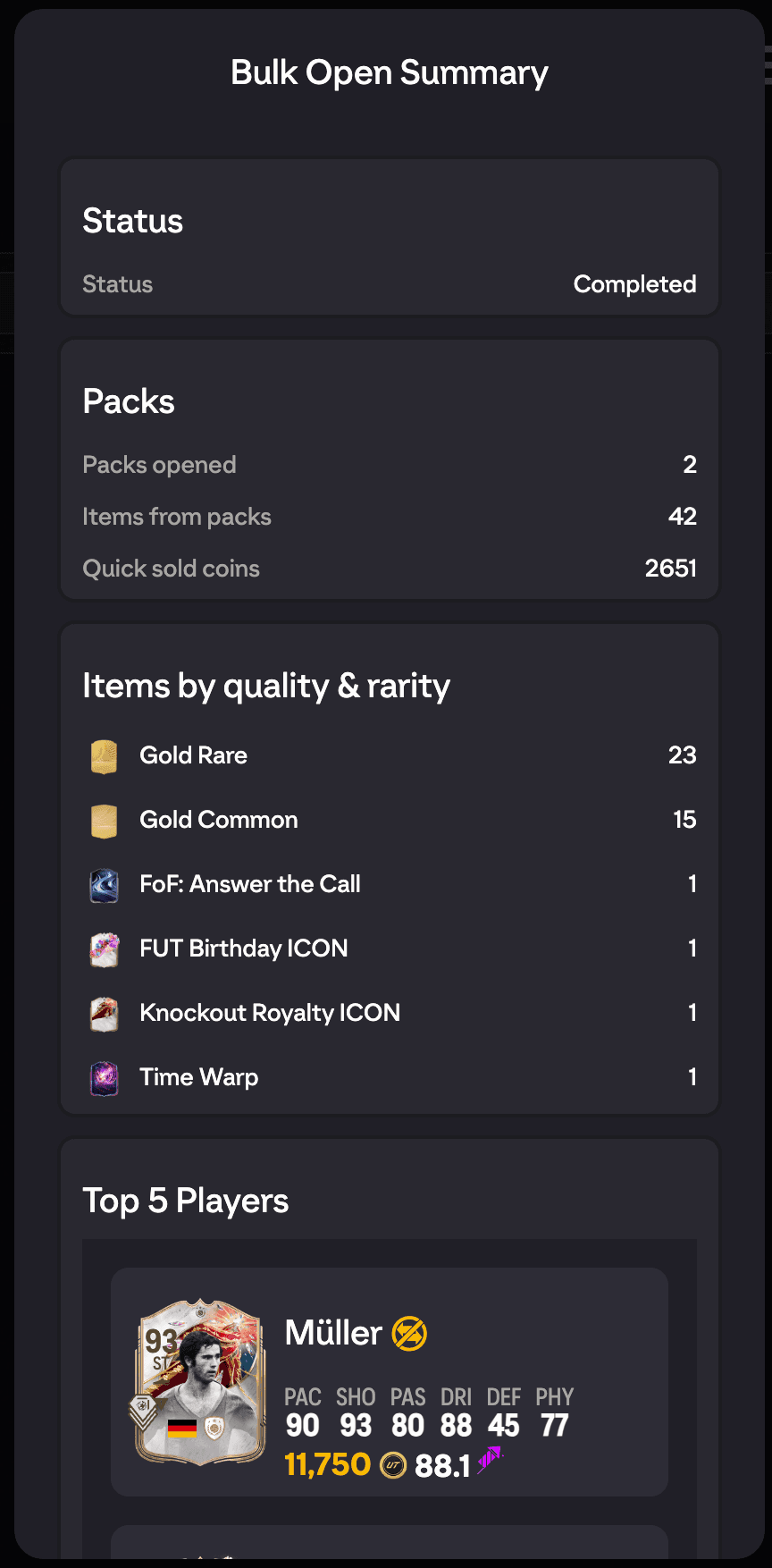
When the run finishes (or stops early) you get a Bulk Open Summary:
- Status: Completed or Stopped early, with the reason.
- Packs: packs opened and total items pulled.
- Actions: how many items were sent to club, sent to the transfer list, sent to storage and quick sold, plus the coins earned from quick selling.
- Top 5 Players, with an approximate total value.
- Items by quality & rarity, a full breakdown of everything you pulled.
Related
For single packs, the Quick Open button skips the animation without a full bulk run. See Store and pack tools.