FC 27 Pack Tools: Quick Open, Filters and Animations
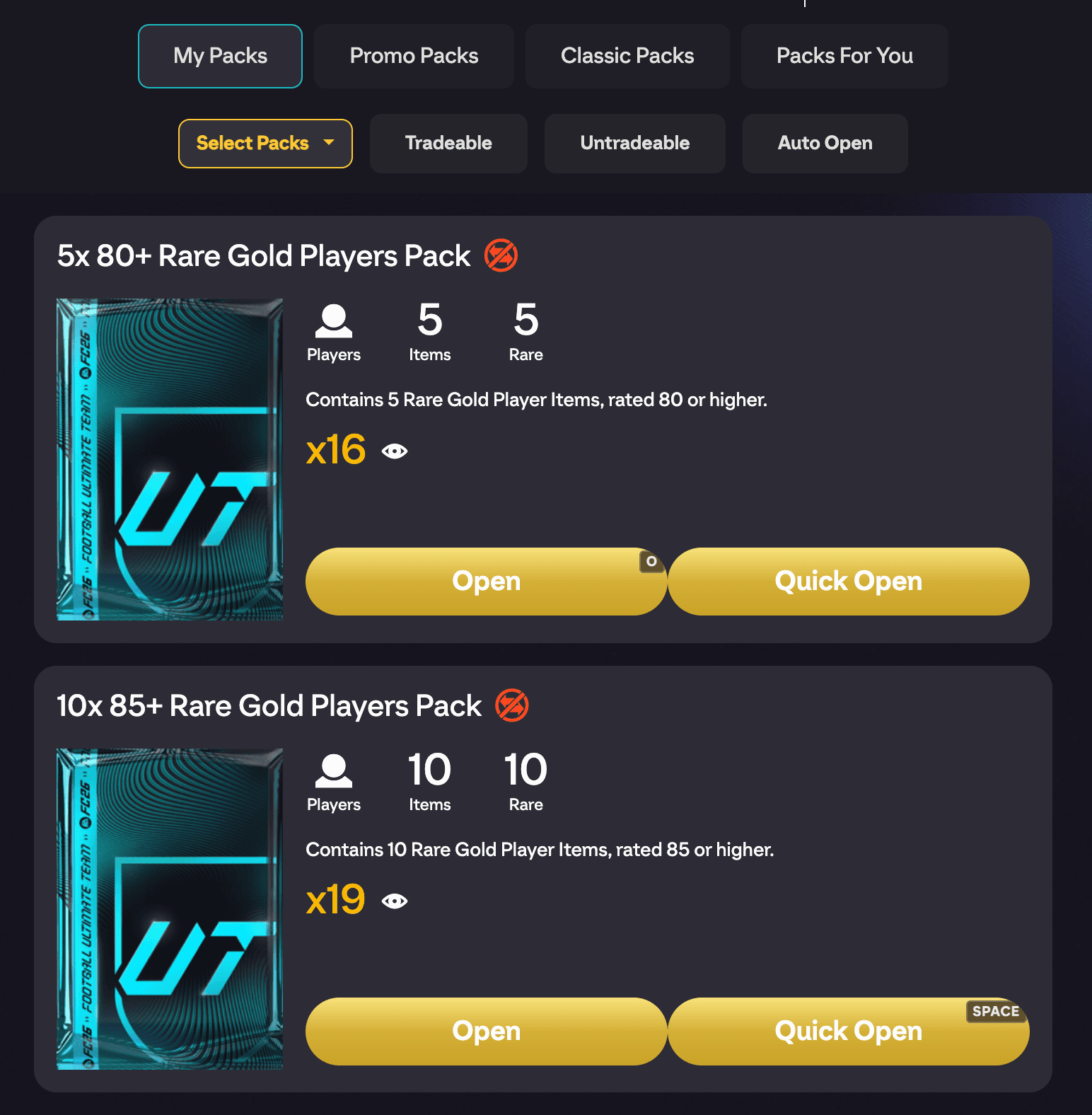
FUTGenie adds a set of smaller quality-of-life tools across the EA FC 27 web app's Store and pack-opening flow. This guide covers all of them. For opening lots of packs at once, see the Bulk pack opener instead.
Quick Open
Quick Open buttons appear in two places in the Store: on the pack detail screen next to EA's own open button, and in the buy-with-coins flow. Pressing it opens the pack immediately and skips EA's pack animation. A pull that meets your animation settings still gets FUTGenie's animation.
Store packs you can buy with FC Points get a second Quick Open for Points. Each button shows its currency icon, coins or FC Points, so you always know which one you are pressing. EA still asks you to confirm every purchase, as it does for its own Buy buttons.
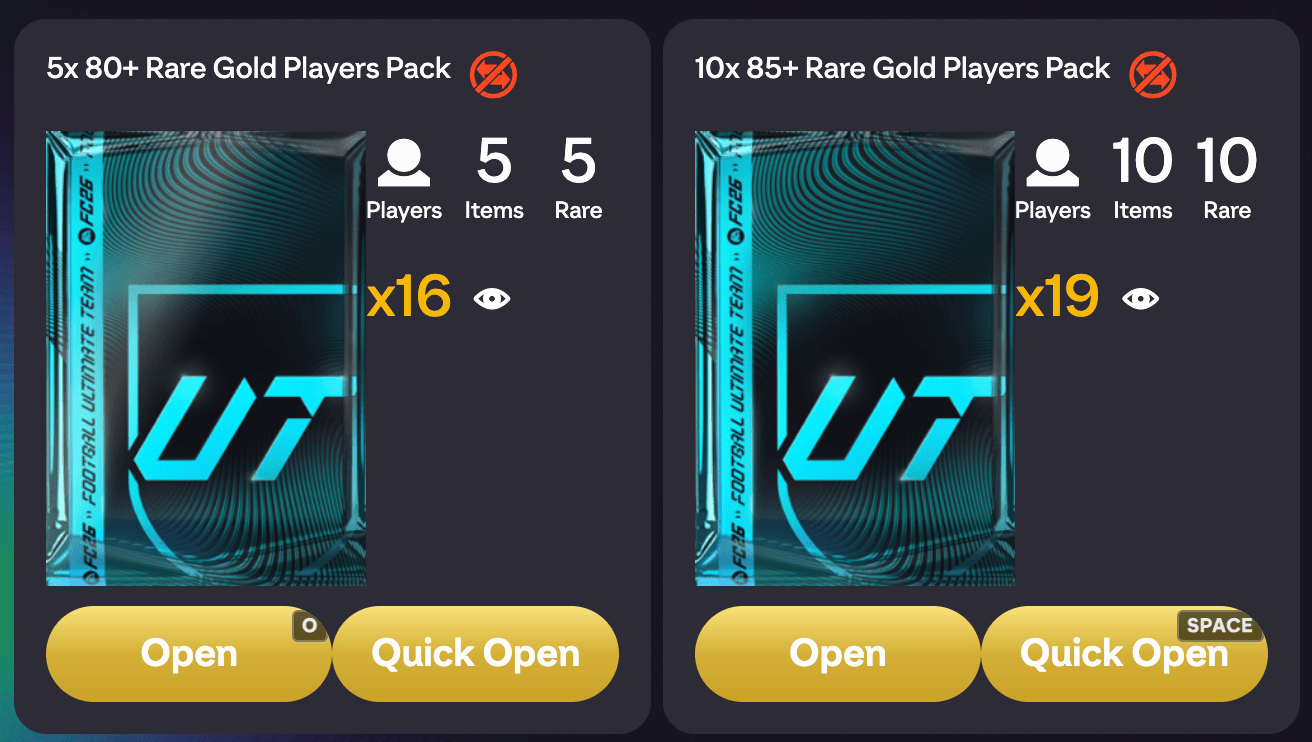
There is a related setting, Store pack quick open max price threshold, in FUTGenie Settings. It takes a value from 0 to 1,000,000 (100,000 by default) and only shows the store Quick Open buttons on packs whose coin price is at or below it, so you can quick-open cheap packs but keep the full experience for expensive ones. The FC Points button follows the same coin price. Set it to 0 to turn the store Quick Open buttons off.
Pack filters and hiding packs
FUTGenie adds a filter bar to My Packs with these chips:
- All Packs: everything you own.
- Tradeable: only packs whose contents are tradeable.
- Untradeable: only untradeable packs.
- Select Packs: pick out specific packs.
- Hidden: packs you have hidden.
- Auto Open: opens the Bulk pack opener.
Each pack also gets a hide control. Hiding a pack removes it from the main list (you will see hidden from list confirm it) and moves it under the Hidden filter, where you can show it again at any time. Handy for burying that stack of untradeable bronze packs you are saving for a promo.
Stack packs
The Stack packs setting (on by default) collapses identical packs into a single row with a count, instead of EA's endless list of duplicates. Turn it off in FUTGenie Settings if you prefer the flat list.
Custom pack animation
FUTGenie can replace EA's walkout with its own reveal for big pulls. There are two animations:
- Walkout: FUTGenie's walkout reveal, without the gold hex.
- Classic: the gold hex reveal.
For the headline promos, either one steps through Position, Nation, League and Club before revealing the card. You can press Skip at any point.

The controls live in FUTGenie Settings under Packs & Rewards:
- Animation style:
- Standard EA animation: FUTGenie plays nothing and you get EA's own.
- Dynamic animations (the default): the classic for the headline promos FUTGenie lists, and the walkout for every other card that qualifies.
- Always classic: the classic for every card that qualifies.
- Always walkout: the walkout for every card that qualifies.
- Minimum player rating to trigger animation: 0 to 99, default 95. A card needs at least this rating to get an animation, whatever its rarity.
- Only show animation for specials (off by default): when on, only special cards (promos, TOTW and other non-base versions) get an animation, so a base gold never does, however high its rating.
Quick Open and Bulk pack opener runs follow the same settings: a pull that qualifies plays its animation (a run waits for it to finish), and everything else goes straight to the results.
Auto-select player picks
On Player Picks screens (SBC and objective reward picks), FUTGenie can pick for you. When a pick screen opens with nothing selected, it fetches prices for every option, ranks them by your chosen priority (and considers whether you already own each card), then selects the best one.
Two settings control this, under Player picks in FUTGenie Settings:
- Auto-select player picks: on by default. Turn it off to always choose manually.
- Player picks priority: Price (the default) or Rating.
Skip reward validation
Finally, the Skip reward validation setting (off by default) suppresses EA's reward-confirmation popup after you claim rewards, shaving a click off every claim. Turn it on in FUTGenie Settings under Packs & Rewards.