The FUTGenie Hub: Stats, Tools and Settings
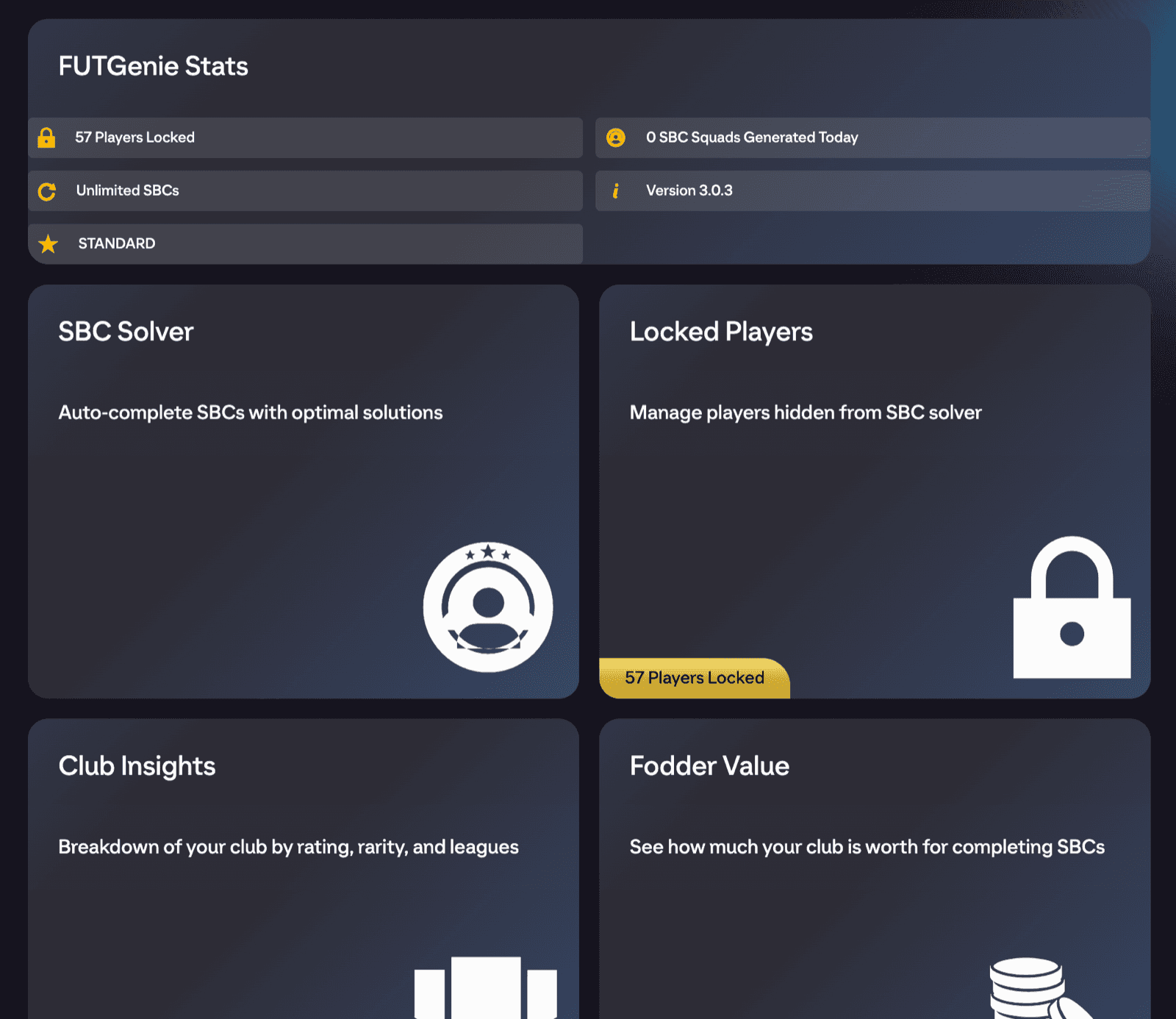
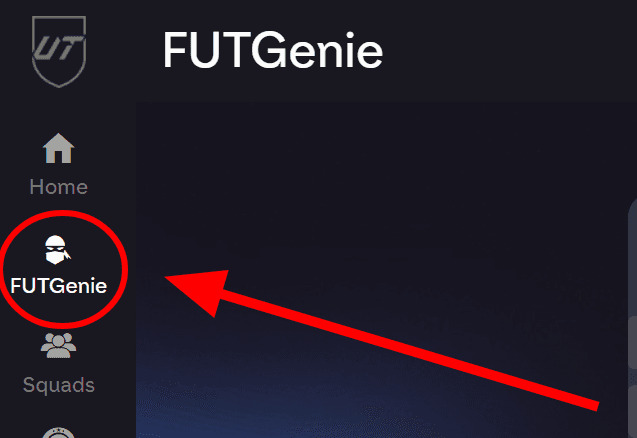
Once FUTGenie is installed, it adds its own FUTGenie tab to the EA FC 27 web app's tab bar. That tab opens the FUTGenie Hub, the home screen for everything the extension does. This guide tours the hub and the two extras FUTGenie adds to the nav bar itself.
The FUTGenie tab
Tap FUTGenie in the tab bar to land on the hub, headed Welcome to FUTGenie Hub.
Signing in
If you are signed out, the top of the hub is a login tile: enter your Email and Password and press Sign In, or use Sign up and Forgot Password if you need them. You can also sign in from the Sign in to FUTGenie button in the nav bar, next to your coin balance. Once signed in, the Log out button sits beside the title of the FUTGenie Stats tile, and asks you to confirm before signing you out.
Your stats tile
Signed in, the top tile becomes FUTGenie Stats. It shows:
- A welcome line with your username and tier.
- How many SBC squads you have generated today.
- Your remaining daily solves (or Unlimited SBCs on paid tiers).
- How many players you have locked away from the solver.
- The extension version you are running.
- A tier badge: FREE, STANDARD or FOUNDER.
The hub tiles
- SBC Solver: jumps straight to the SBC hub, where all the solving tools live. See Auto Complete an SBC to get started.
- Locked Players: manage the players you have locked. Locked players are never used by the solver and can't be picked up by bulk listing or quick selling. Full guide at Lock players.
- Club Insights: a breakdown of your club by rating, rarity, leagues and more. See Club Insights and Fodder Value.
- Fodder Value: what your club is worth for completing SBCs, covered in the same guide.
- Settings: every FUTGenie preference, all explained in FUTGenie Settings.
- Patch Notes: opens the latest release notes on futgenie.gg.
On the free tier you'll also see an Upgrade your plan tile linking to the pricing page.
Nav-bar extra 1: the view toggle
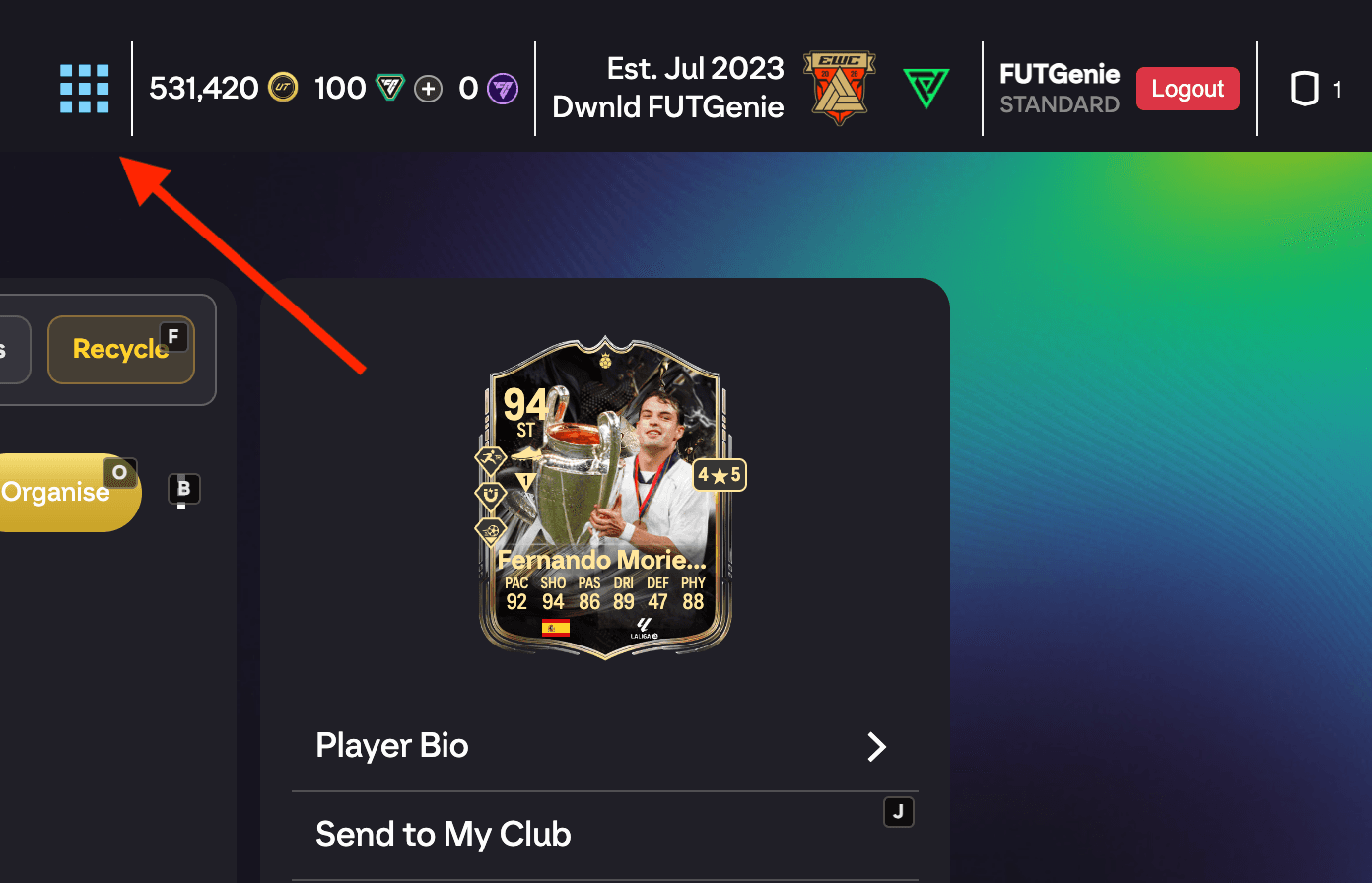
Next to your coin balance, FUTGenie adds an icon-only button that cycles between three layouts: list, grid and compact. It applies across item lists (club search, transfer list and so on), the SBC hub tile grid, the store, and FUTGenie's own solution previews. If lists ever feel cramped or too sparse, this button is why, and also the fix.
Nav-bar extra 2: card overlays
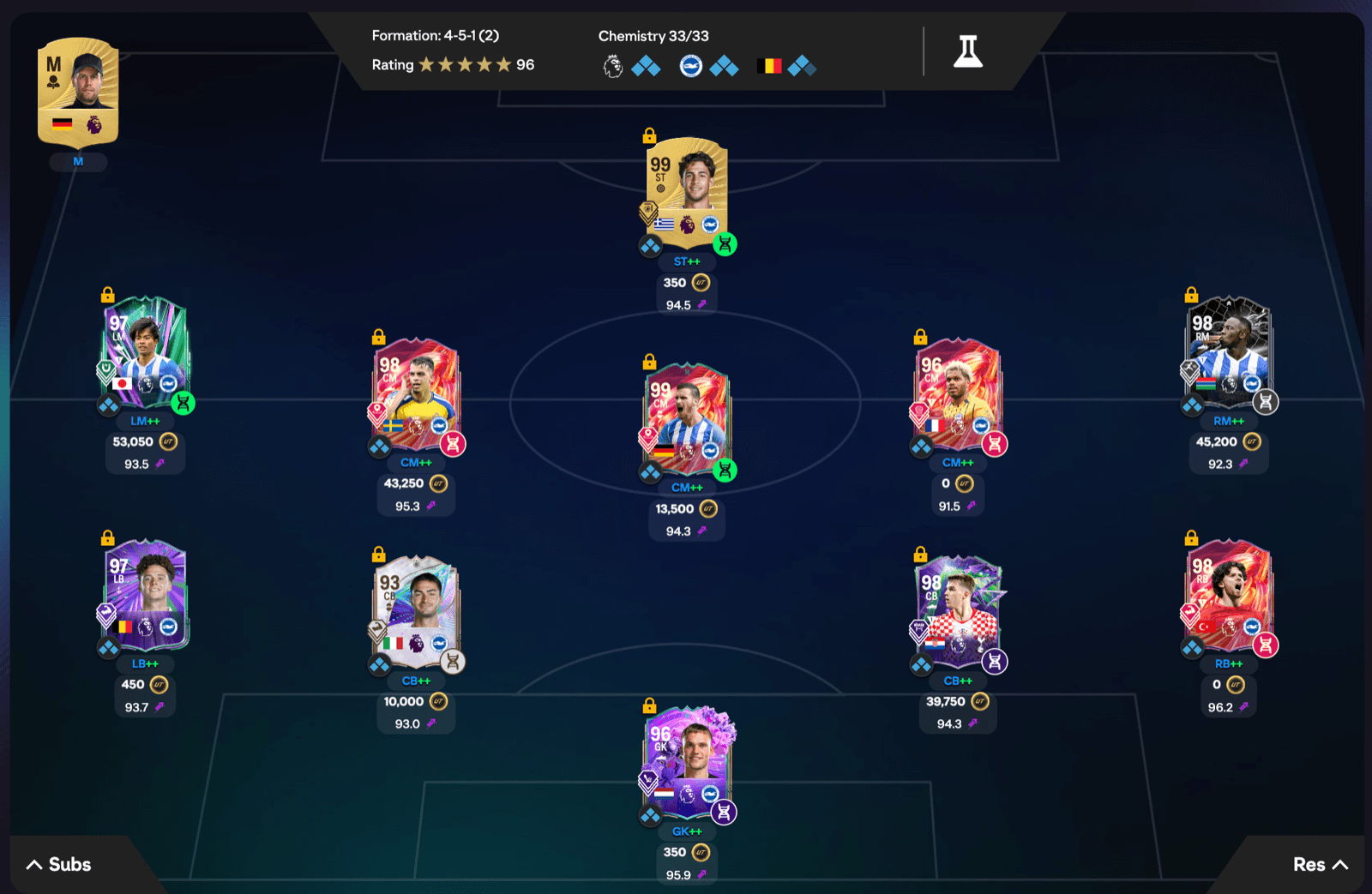
With FUTGenie active, player cards in your squad and club carry a small pill showing the card's price and its Genie Grade. Genie Grade is FUTGenie's own rating of how good a card plays in FC 27, on a scale like a card's own rating (the very best cards sit in the low 90s), from its detailed stats, PlayStyles, skill moves and weak foot, and it depends on the position, so the same card grades differently at striker than at centre back. You'll see it on squad cards, club lists, player picks, Evo Builder previews and the Squad Builder.
Three toggles in Settings under Display control the overlays: Show Prices in Squad, Show Prices in Club and Show extra info on player cards (skill moves, weak foot and position labels on large cards). All three are on by default.
Good to know
- The hub stats tile is the quickest way to check your remaining daily solves before a big SBC session.
- Turning on Show tutorial hints in FUTGenie Settings adds ? icons next to features around the app that link straight to these guides.