SBC Hub Tools: Softban Tracker, Search and Prices
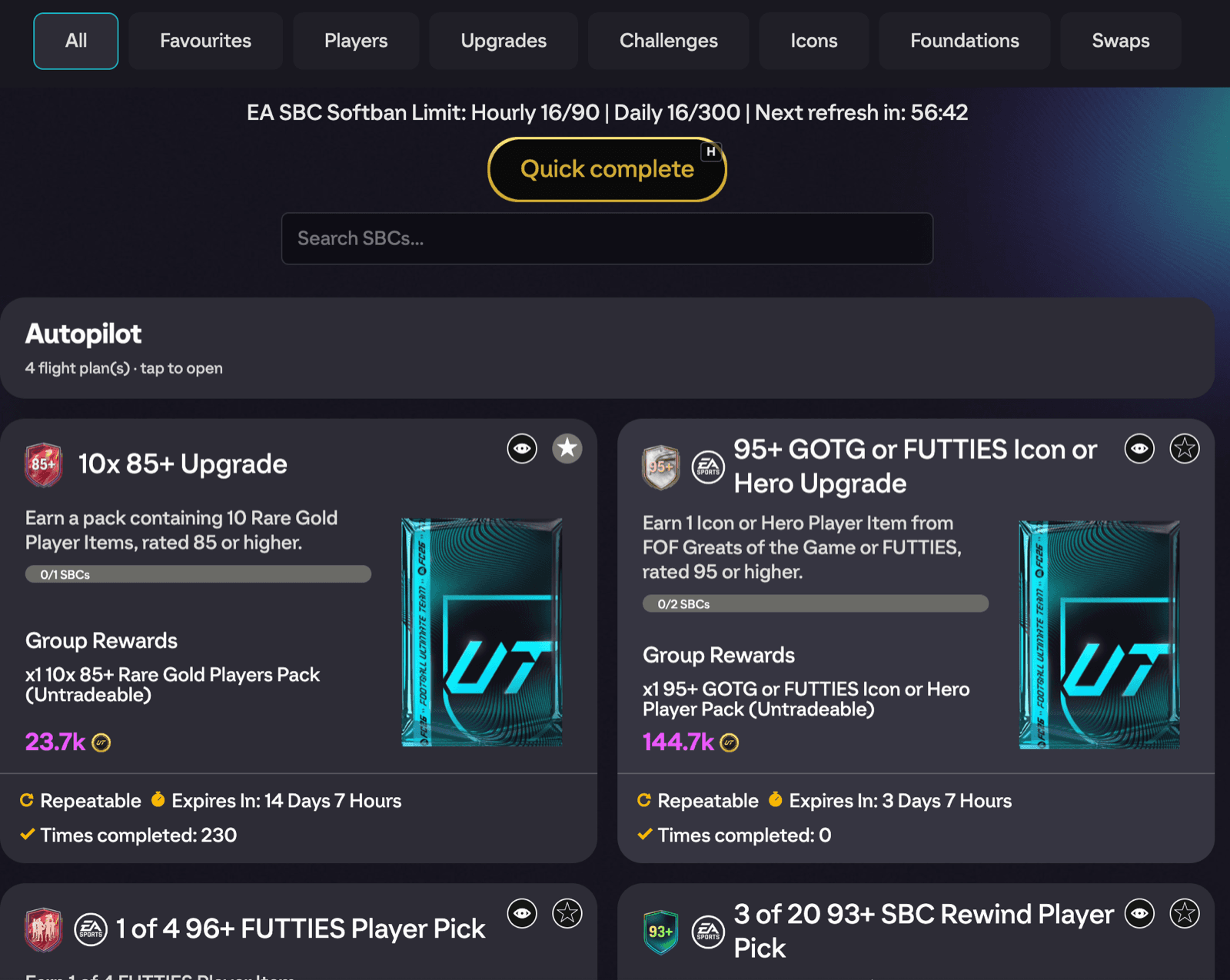
FUTGenie adds a handful of quality-of-life tools directly onto the EA FC 27 web app's SBC hub (the screen listing all SBC sets). Here's what each one does.
Softban tracker
At the top of the hub, the EA SBC Softban Limit tracker shows your Hourly and Daily SBC submission counts against the community-reported thresholds of 90 per hour and 300 per day, along with countdowns to when each counter resets.
These thresholds aren't official EA numbers, they're what the community has observed before EA starts temporarily blocking submissions. Keep an eye on the tracker when you're doing big Auto Complete Set or Solve Multiple Times runs.
The Quick complete button sits directly beneath the tracker; see the Daily Quick Complete guide.
SBC search
A Search SBCs... box filters the tile grid live as you type, so you can jump straight to a set without scrolling. The × button clears the search.
Hide and show sets
Each set tile gets an extra icon button (next to EA's favourite star) that hides the set from the grid. Hidden sets move to a new Hidden tab in the filter bar, where you can unhide them the same way. You'll get a confirmation notification each time a set is hidden or unhidden.
Handy for clearing out sets you never plan to do, like the expensive icon SBCs cluttering the grid.
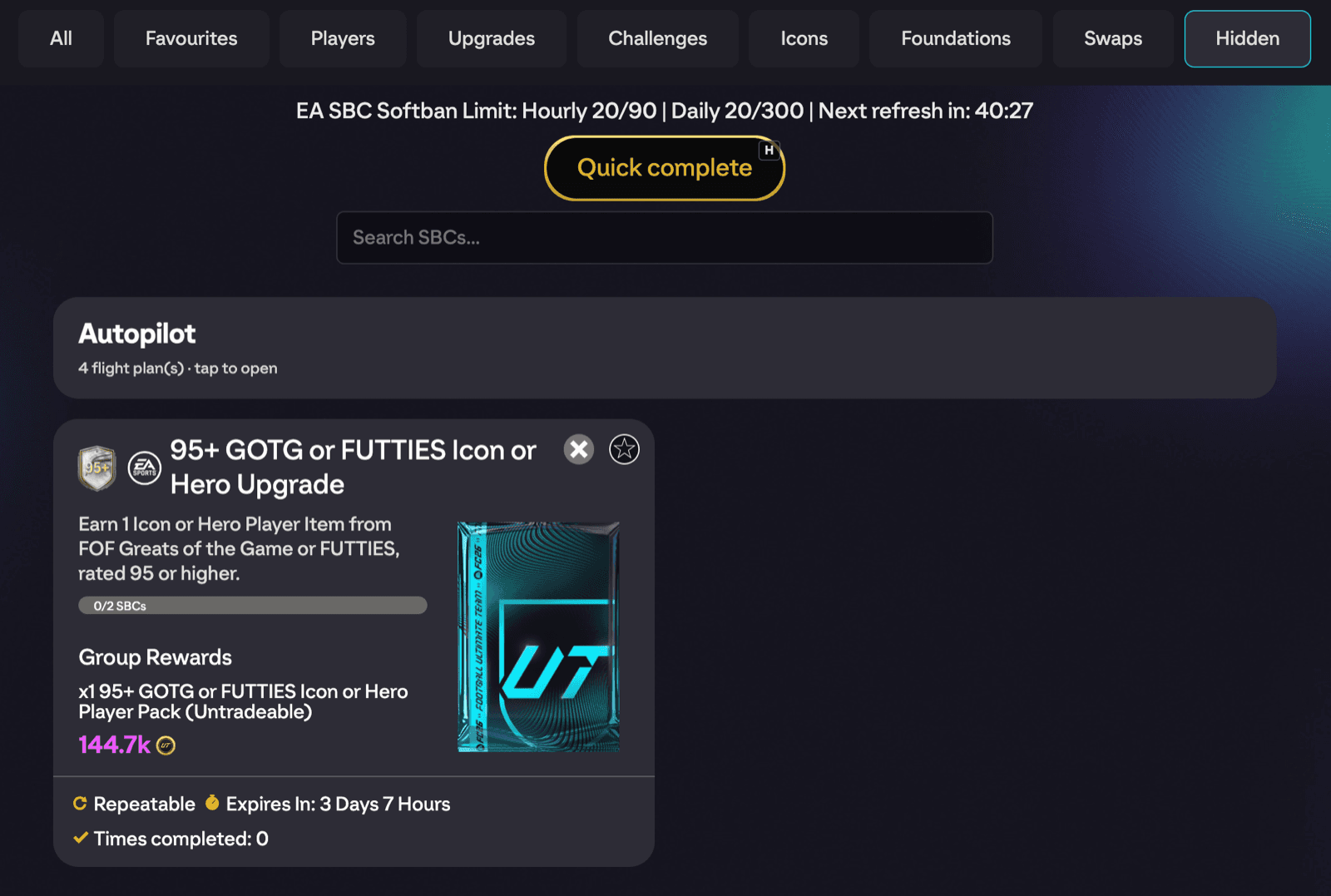
Set prices on tiles
Every set tile shows an approximate completion price as a coin value, formatted like 340.5k or 1.2M. It shows dashes until the price loads. Prices are estimates based on current market data, so treat them as a guide rather than a quote.
Favourites first
FUTGenie reorders the tile grid so your favourited, incomplete sets always appear first. Favourite a set with EA's own star and it jumps to the front of the grid until you complete it.
Autopilot tile
A wide Autopilot tile is pinned at the top of the grid. Autopilot lets you queue up SBC solves, pack opening, and more into saved flight plans. See the Autopilot guide for the full walkthrough.