Lock Players so the SBC Solver Never Uses Them
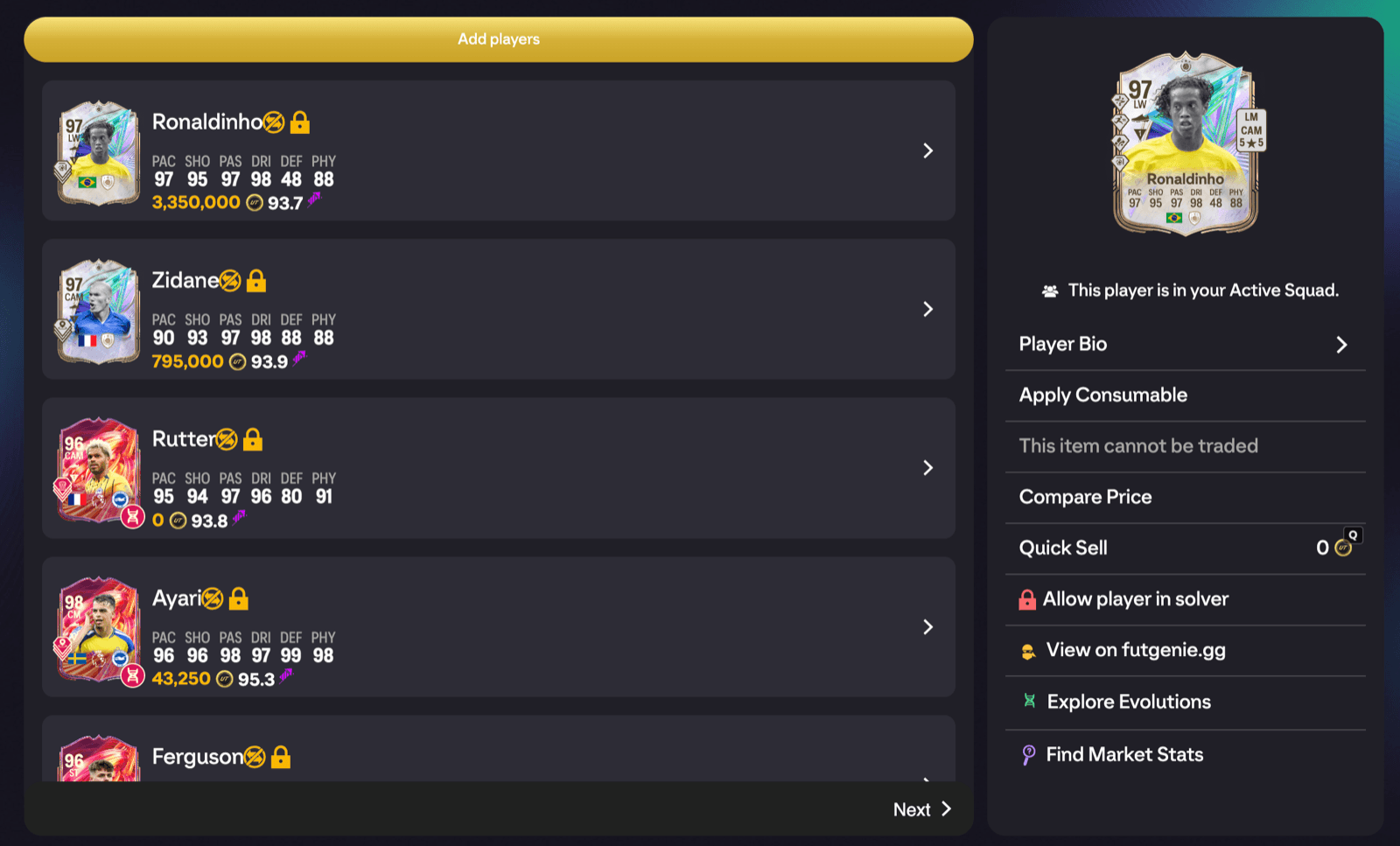
Locking a player hides them from the SBC solver in the EA FC 27 web app, so no solve will ever pick them as fodder. It's the tool for protecting a favourite untradeable, a card you're saving for a future SBC, or anything else you'd be gutted to see submitted.
Locking a player
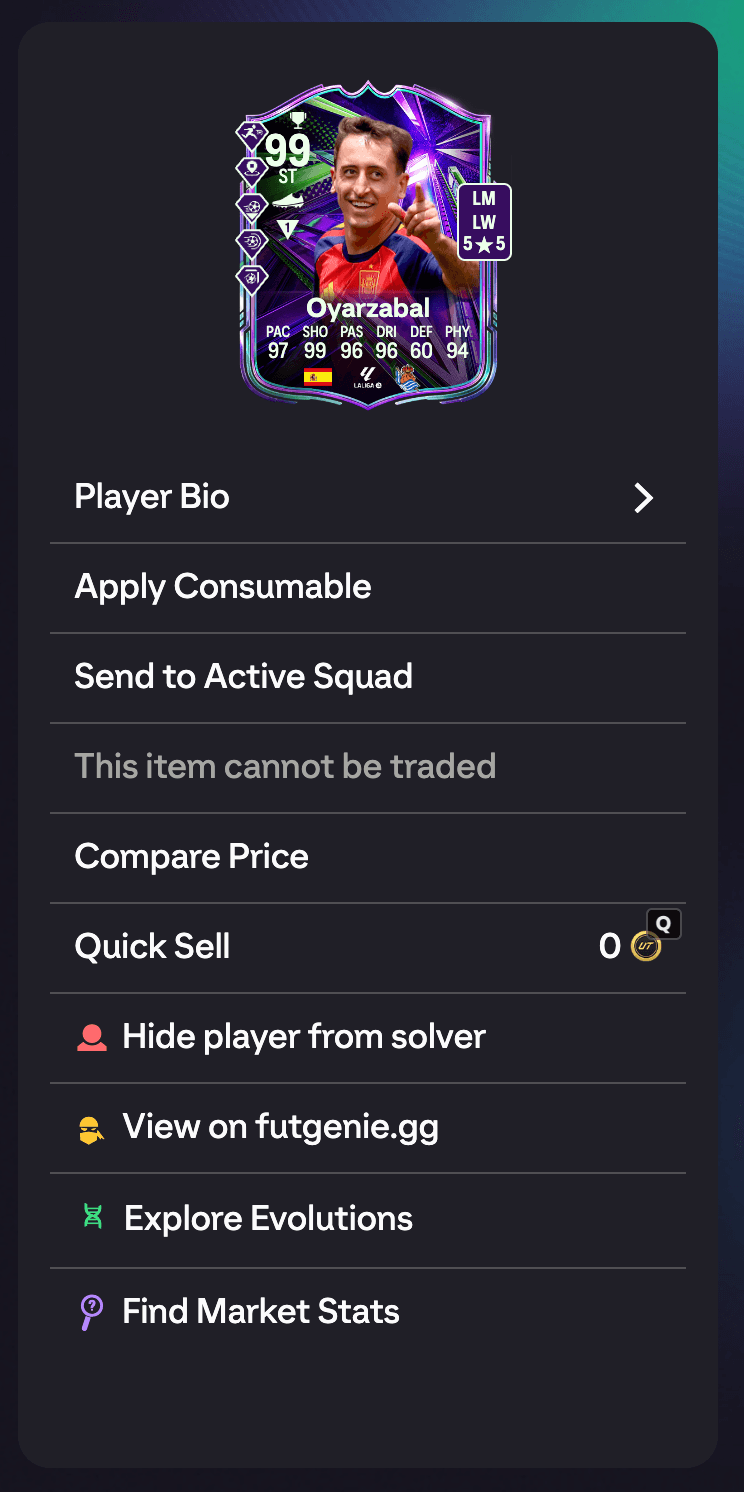
Open any owned player's item detail panel (in your club, transfer list or storage) and look for the padlock icon. Tap Hide player from solver to lock them. The same spot shows Allow player in solver when the player is already locked, so unlocking is one tap in the same place.
Locked players show a lock icon on their row in list views, so you can spot them at a glance while browsing your club.
Managing all your locks
The Locked Players tile on the FUTGenie hub opens a split view listing every player you've locked.
- Tap a player in the list to open their details, then tap Allow player in solver to unlock them.
- Tap Add players in the list header to search your club and lock players from there, without hunting for their item panel. Back to locked players returns you to the list.
The FUTGenie Stats tile at the top of the hub keeps a running count of how many players you have locked.
Good to know
- Locks work on owned players. Locking affects solver results only; everything else about the card is untouched.
- Players in your active squad are already protected by the Exclude Active Squad Players setting (on by default, see FUTGenie Settings). Locks are for everyone else.
- Locks stay in place until you remove them, so give the Locked Players list an occasional once-over when fodder gets tight.