How to Auto Complete SBCs in EA FC 27
FUTGenie
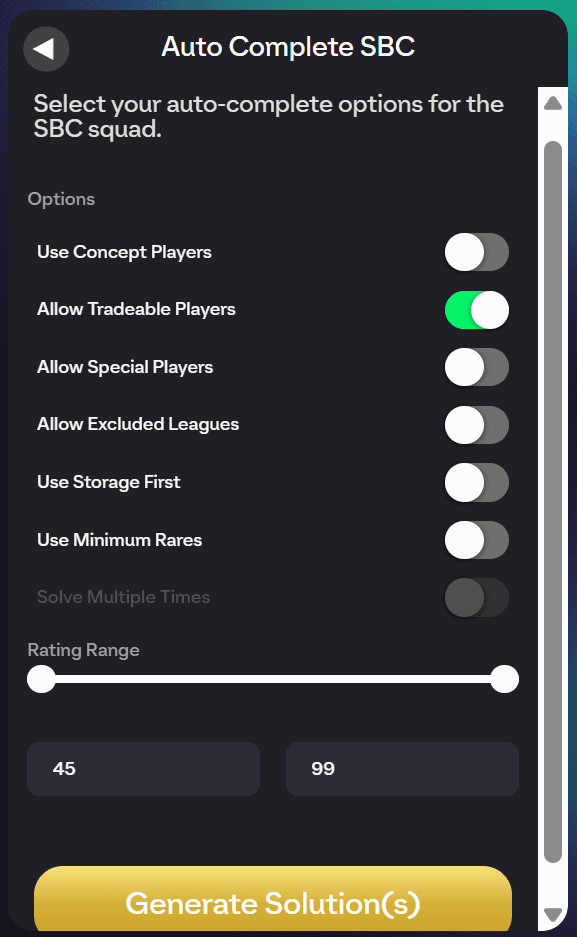
Auto Complete solves a single SBC challenge for you in the EA FC 27 web app. Set your options, generate a solution, review it, and apply it, all without leaving the squad screen.
Where to find it
Open an SBC set, then open a challenge. On the SBC squad screen you'll see the Auto Complete button in the panel alongside EA's own Submit button.
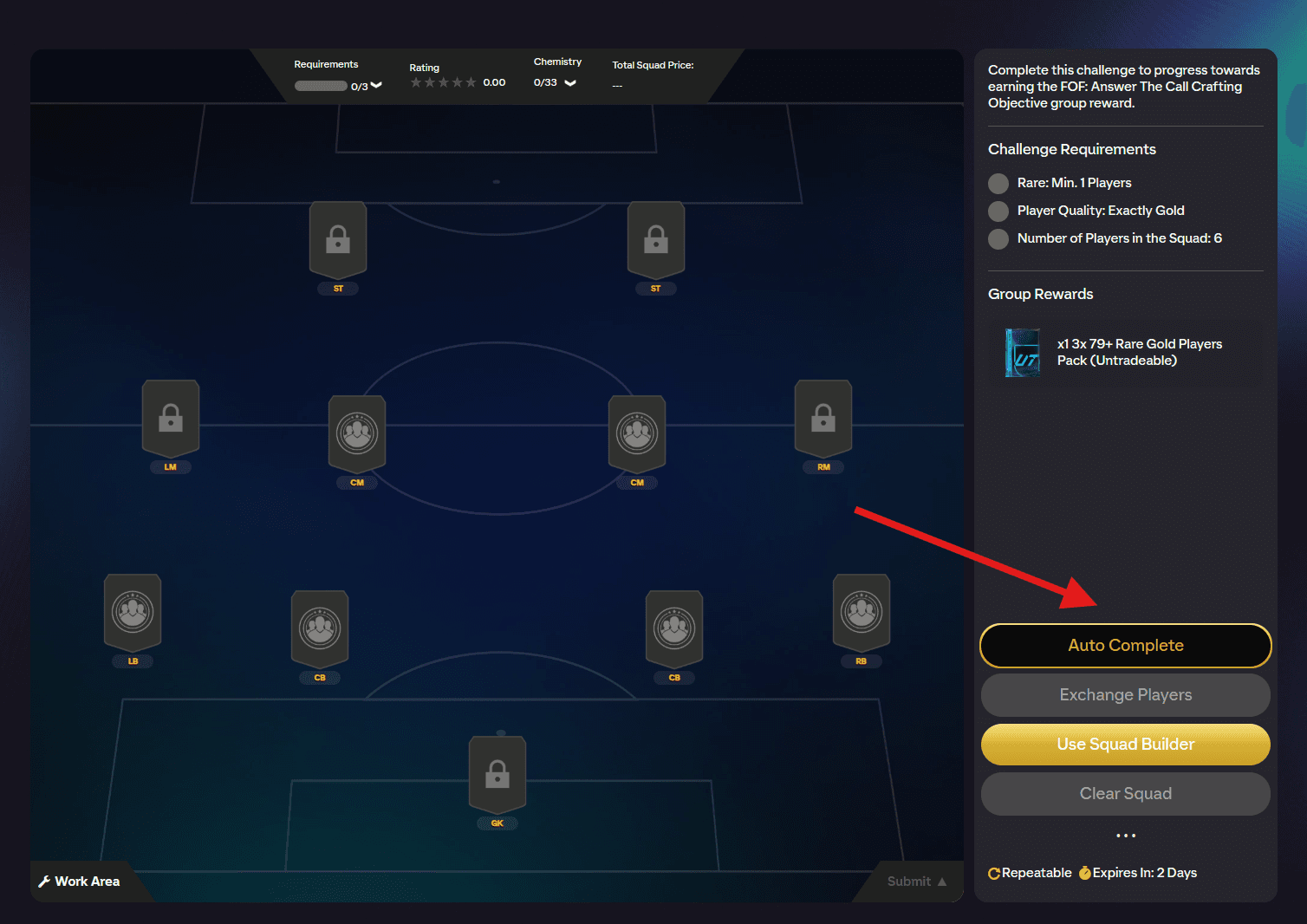
Tap Auto Complete and the FUTGenie panel opens with all the solver options.
Step by step
- Open the challenge and tap Auto Complete.
- Adjust the options below to suit the challenge.
- Tap Generate Solution(s). FUTGenie loads your club, solves the challenge, and builds a preview.
- Review the Solution Preview, swap any players you want to keep, then tap Apply.
Each solve consumes one of your free daily SBC solves. The FUTGenie hub shows how many you have remaining, and paid plans solve without limits.
Options explained
- Use Concept Players: allows solutions containing players you don't own. You then buy them from the market (see Buy cheapest (concept)). This toggle always starts OFF.
- Allow Tradeable Players: lets the solver use tradeable players from your club.
- Allow Special Players: lets the solver use non-gold-rare cards (TOTW, promo cards, and so on).
- Allow Excluded Leagues: overrides your Excluded Leagues setting for this solve only.
- Use Storage First: prefers players in your club storage before touching the main club.
- Use Minimum Rares: only spends rare cards when the requirements force it.
- Use Unassigned Duplicates: lets duplicates sitting in your unassigned pile be used as fodder.
- Use Transfer List Duplicates: the same, for duplicates on your transfer list.
- Keep Squad Players, Fill Rest: keeps any players you've already placed in the challenge squad and only fills the empty slots.
- Solve Multiple Times: switches to multi-solve and reveals a Repeat Count spinner. See the Solve Multiple Times guide for the full flow.
Below the toggles:
- Rating Range: a double slider (45 to 99) limiting which player ratings the solver may use. This is remembered separately for each challenge, so your setup is still there next time you open the same SBC.
- Special Rating Range: a second slider that applies only to special cards, so you can burn low-rated specials while protecting the good ones. Also remembered per challenge.
- Solve Using: choose Price (cheapest squad, the default) or Rating (spends your lowest-rated eligible fodder). This choice is remembered globally.
The Solution Preview
Once solving finishes, the Solution Preview shows the full squad with an estimated squad price.
- Swap player: re-solves a single slot if you'd rather keep that player. You'll see Swapped player on success, or No alternative found if the solver can't replace them.
- Buy All Concept: if the solution contains concept players (tagged Concept), this buys them all from the market in one go. Bought players get a green Bought tag. Details in Buy cheapest (concept).
- Auto Submit: ON by default. When ON, applying the solution submits the challenge immediately. Turn it OFF to have FUTGenie save the squad into the SBC without submitting, so you can review it and press Submit yourself.
- Apply: places the squad (and submits it, if Auto Submit is on).
More FUTGenie Options
Next to Auto Complete there's a More FUTGenie Options menu with a few handy extras:
- Add Multiple Players: fills the challenge squad from your club in bulk.
- Buy All Concept: opens the Buy All Concept tool for any concept players already in the squad.
- Add Unassigned Players: adds unassigned-pile players that have a duplicate in your club.
Good to know
- Rating ranges are saved per challenge, most other toggles are saved globally, and Use Concept Players always resets to OFF.
- If you hit your daily limit you'll see the SBC Solutions Limit Reached message. You can upgrade for unlimited solves or watch an ad for free credits.
- To solve a whole set in one go, use Auto Complete Set instead.