Organise and Recycle Unassigned Items into SBCs
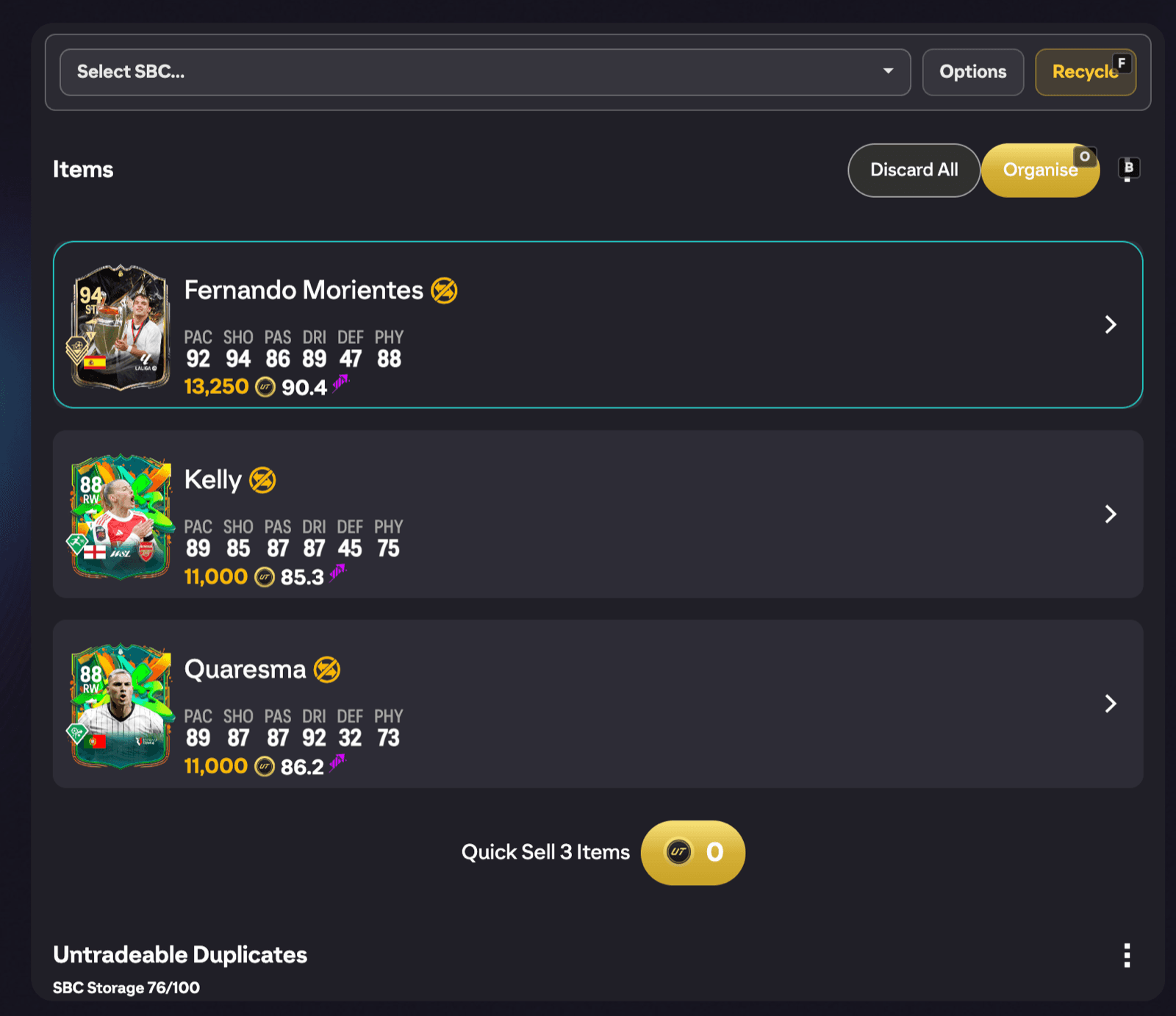
After opening packs or claiming rewards in EA FC 27, your unassigned pile fills up fast. FUTGenie adds three tools to the Unassigned Items screen so you never have to sort it by hand: Recycle, Organise and Discard All.
Recycle: turn the pile into an SBC
At the very top of the Unassigned Items screen, FUTGenie adds a Recycle panel. It solves an SBC of your choice using the items sitting in your unassigned pile, which is a great way to turn pack filler into rewards instead of quick-sell coins.
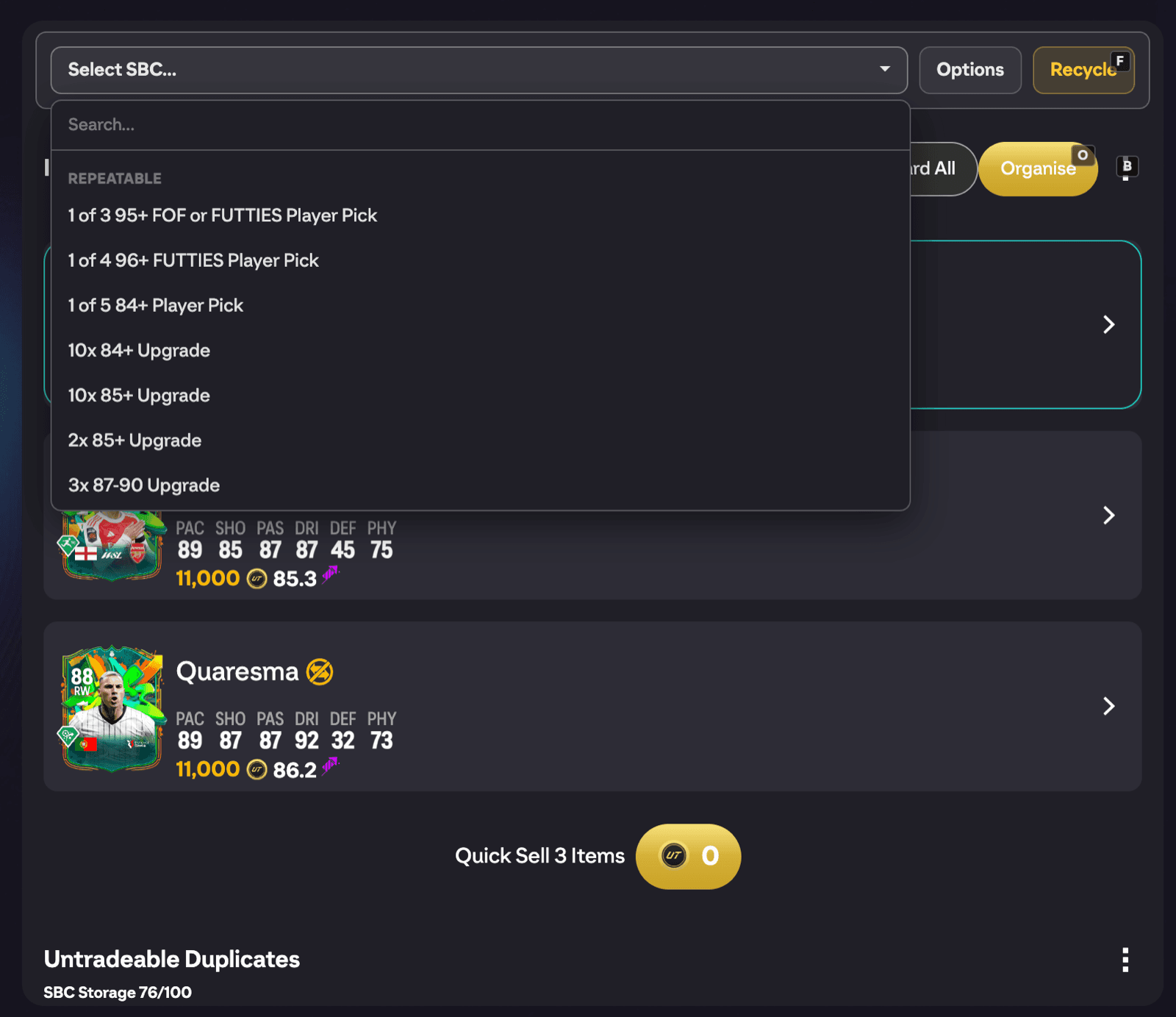
- Open the Select SBC dropdown. It is searchable and grouped into Repeatable, Limited repeats (each showing how many repeats you have left) and One-time challenges. Your selection is remembered for next time.
- Optionally press Options to open the Recycle options modal.
- Press Recycle. The button stays disabled until you have picked an SBC. FUTGenie solves the challenge prioritising your unassigned items and shows you a solution preview before anything is submitted.
The Recycle options modal has these toggles:
- Allow Tradeable Players: let the solve use tradeable cards, not just untradeables.
- Allow Special Players: allow special versions in the solution.
- Allow Excluded Leagues: ignore your excluded-leagues protection for this solve.
- Use Transfer List Duplicates: also pull from duplicates on your transfer list.
- Use Storage First: prefer items in storage before touching anything else.
There are also rating-range sliders (45 to 99) so you can cap which ratings the solve is allowed to use.
Recycle runs a normal SBC solve, so on the free tier it consumes one solve from your daily quota.
Organise: one tap to sort everything
In the header of the topmost unassigned section you will find a mini Organise button. One tap distributes every unassigned item (club, transfer list, storage or quick sell) using the ruleset you have chosen in FUTGenie Settings under Ruleset for unassigned organise. Rulesets are the same ones used by the Bulk pack opener.
When it finishes you will see Organise complete (or Nothing to organise if the pile was already clear). If your transfer list or storage fills up mid-run, it stops and tells you.
Discard All
Next to Organise is a Discard All button. It only appears when the pile actually contains something discardable.
Pressing it opens a Discard All Items? confirmation with a full breakdown of what you are about to lose: the number of items, tradeable duplicates, untradeable duplicates and the total value. Confirm with Discard All.
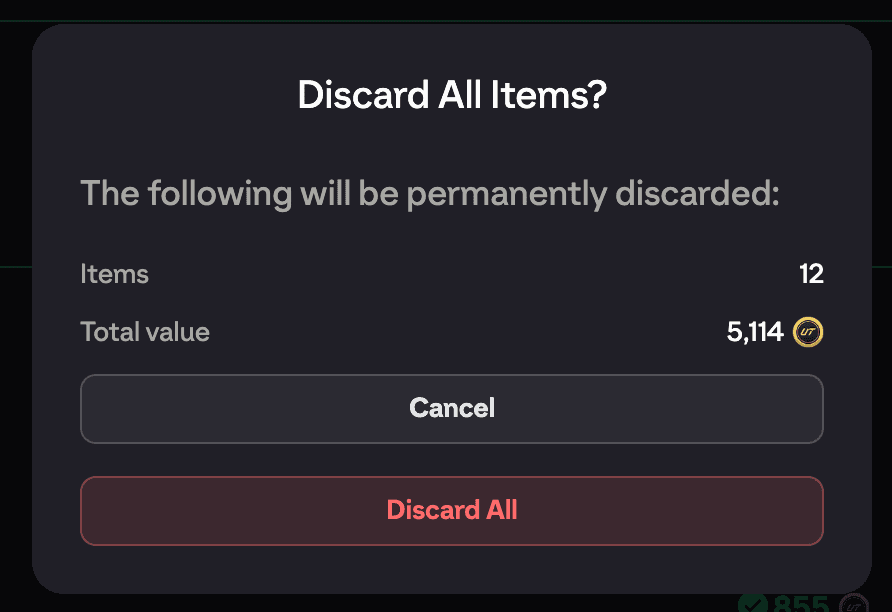
Discarding is permanent. Check the total value line before you confirm, and if there is anything worth keeping, run Organise or Recycle first.