FC 27 Web App Sniping and Transfer Market Tools
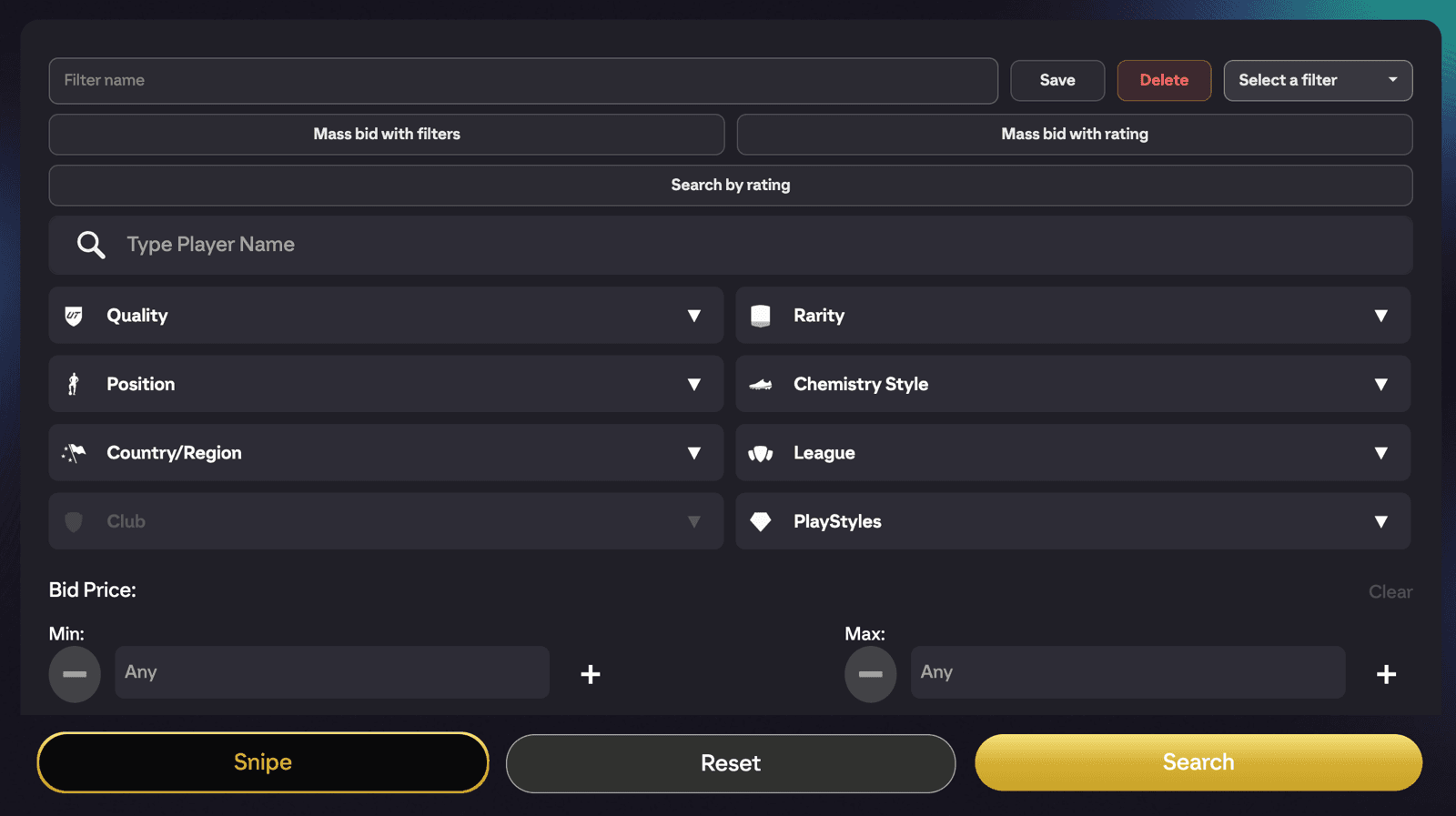
FUTGenie adds a handful of quality-of-life tools to the EA FC 27 transfer market search screen. This guide covers Snipe, Search by rating, saved filter presets, and the One click Buy Now setting.
For automated bidding, see Mass bid with filters and Mass bid with rating.
Snipe
Sniping is all about how fast you can repeat a search. The Snipe button sits right next to EA's own Search button on the transfer market filters screen.
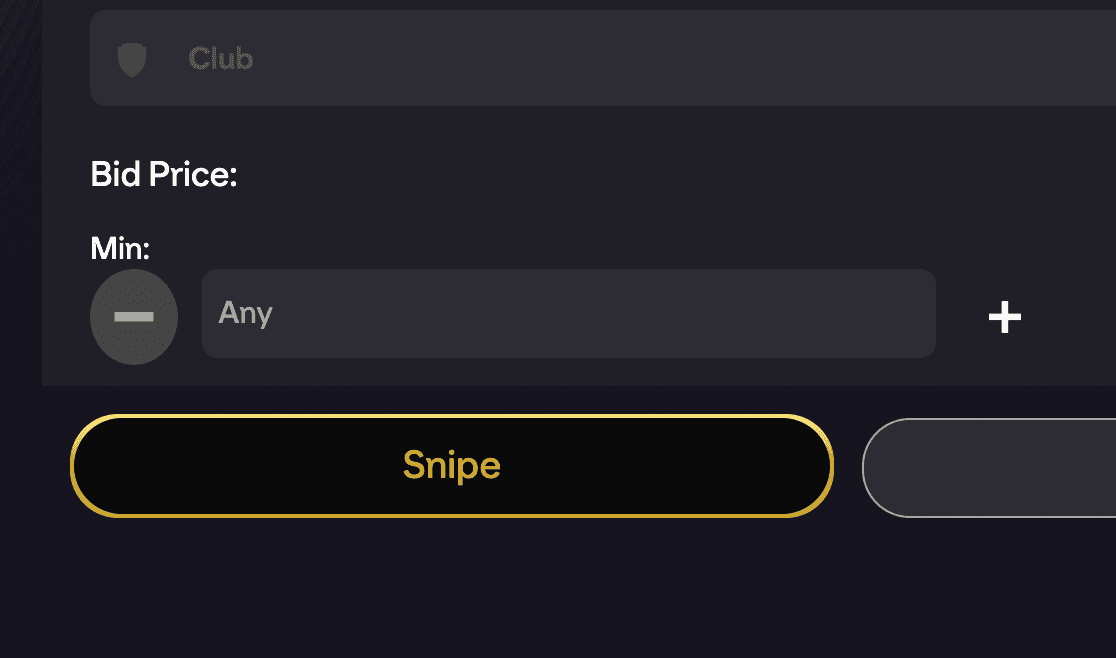
Set your filters as normal, including a Max Buy Now price at the price you want to snipe at, then tap Snipe. It reuses your current search criteria exactly, with two tweaks that make it faster than searching manually:
- It bumps the minimum bid one step above your current minimum, so listings that are only biddable are skipped and you only see cards you can actually buy now.
- It clears EA's cached results before searching, so every tap is a genuinely fresh search.
That means re-searching is a single tap of Snipe, over and over, until something appears. There are no options of its own to configure.
The first time you use it, FUTGenie shows a one-time warning: "Using transfer market features may put your account at risk". Sniping aggressively can trip EA's limits, so pace yourself. Tap Continue to carry on (you can tick Do not show this message again).
Search by rating
Search by rating is a browse tool, not a buying tool. It's in the FUTGenie toolbar below the tab menu on the transfer market screen.
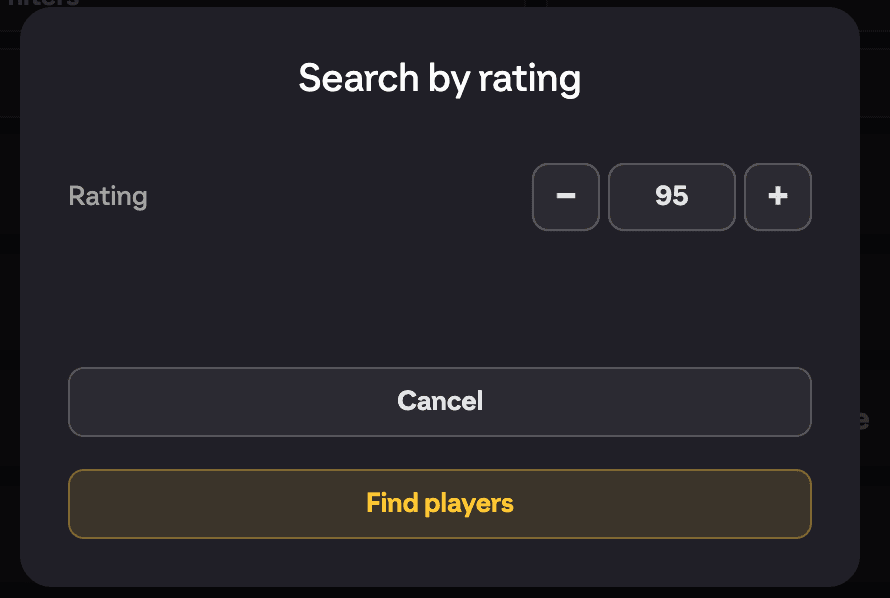
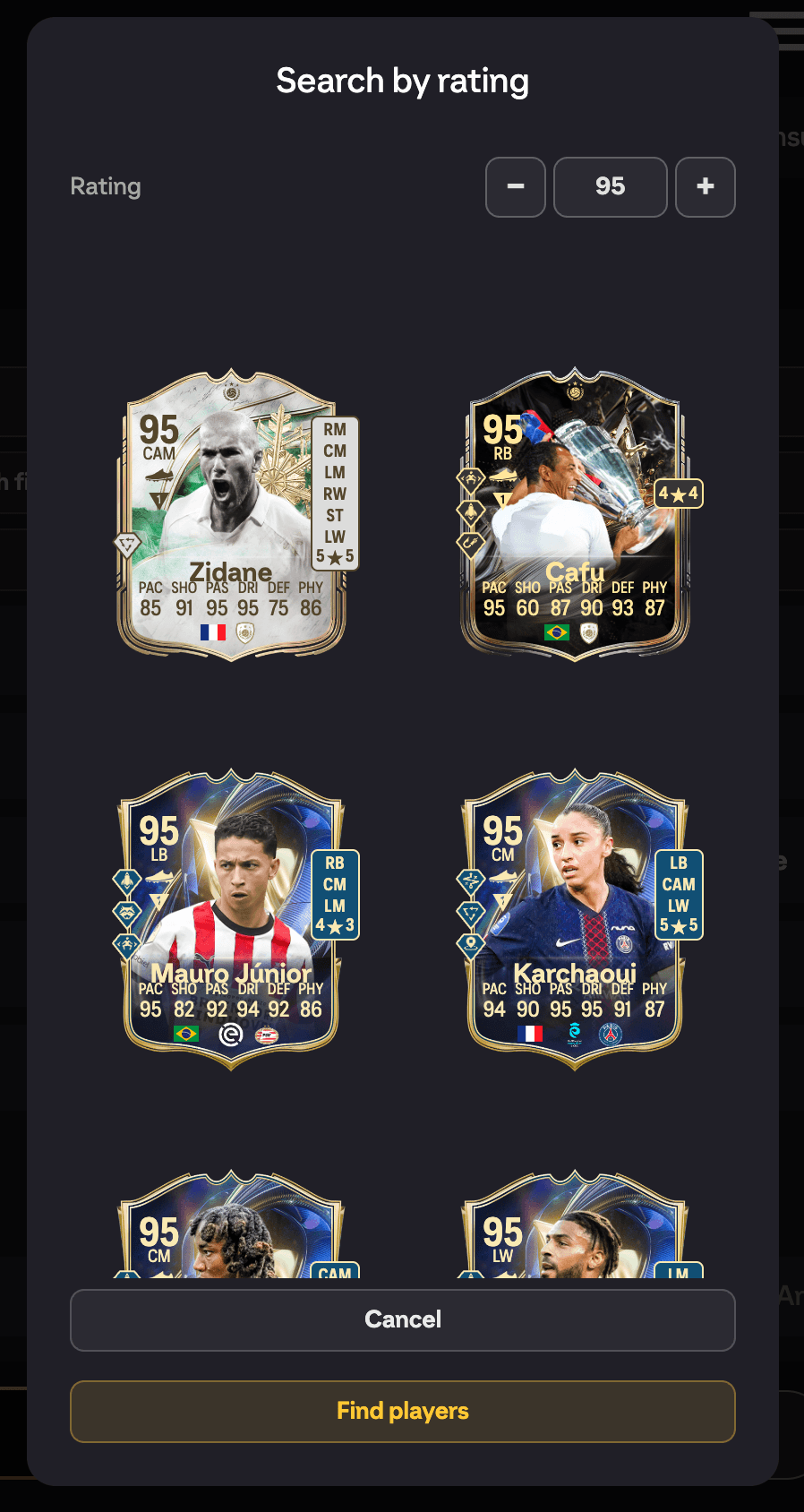
Tap Search by rating, enter a rating, and hit Find players. After a short Loading players... you get a grid of every player at that rating, with weak foot, skill moves and alternative positions filling in as they load. It's a quick way to scan who exists at a rating before deciding what to hunt for.
Tap a player in the grid to search the transfer market for that exact card. EA's search screen opens with an Exact card chip above the player name, so only that version comes back, not every card of the same player. All the usual filters still work, so you can set Min and Max Bid or Buy Now prices, then Search or Snipe as normal. Tap the × on the chip (or pick a different player) to go back to searching every version.
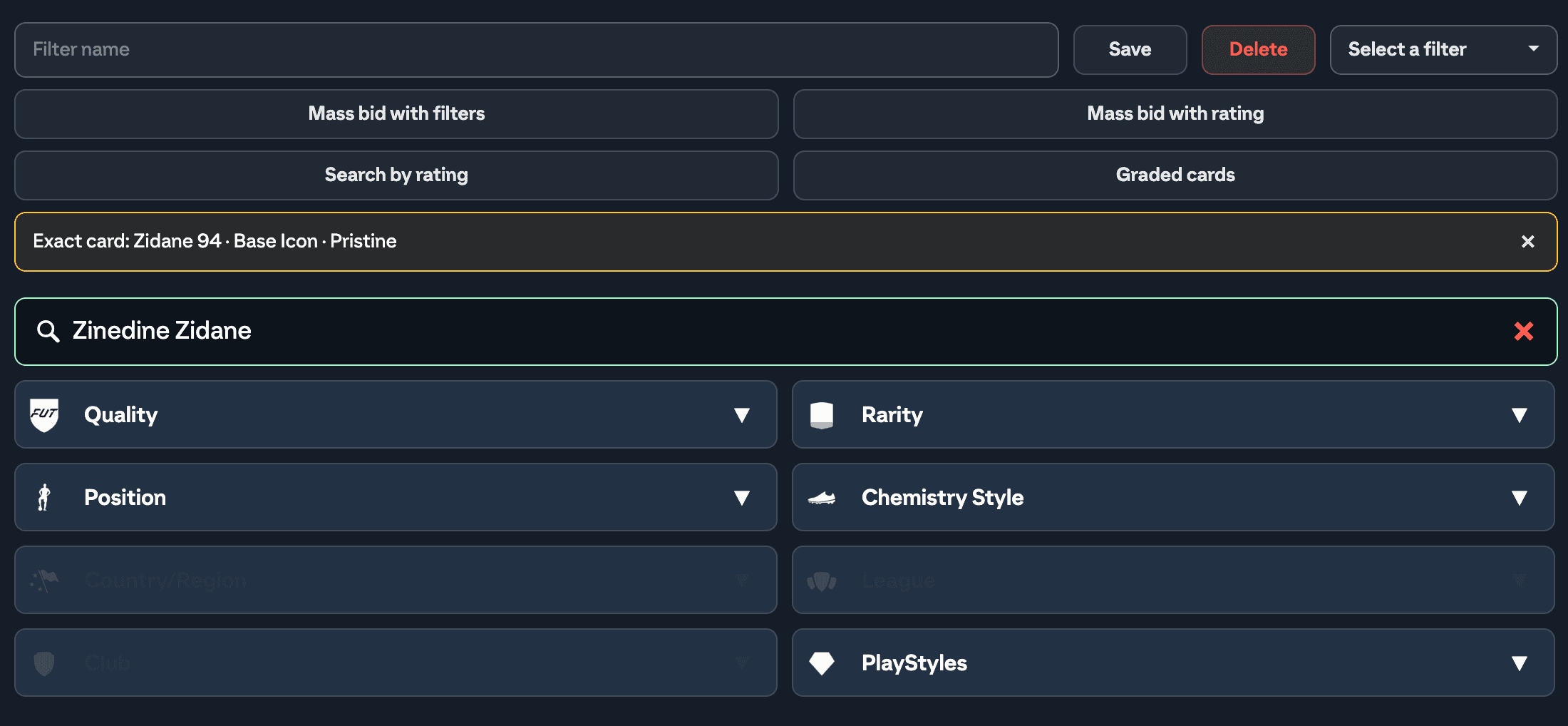
The Graded cards picker works the same way: tap a card and the search is locked to that graded version.
Filter presets
If you keep re-entering the same searches, save them. The preset bar is the first row of the FUTGenie toolbar on the transfer market screen.
- Set up your filters, type a name into Filter name, and hit Save. You'll see Filters saved.
- To load one later, pick it from the Select a filter dropdown and your saved filters are applied instantly.
- The dropdown also has a Clear row that resets all filters back to blank.
- To remove a preset, select it and hit Delete. You'll see Filter deleted.
Presets pair nicely with Snipe: save one preset per card you're sniping and flick between them.
One click Buy Now
With the One click Buy Now setting on (it's on by default), tapping EA's Buy Now button on a market listing buys it immediately, skipping EA's "are you sure" popup. When you're sniping, that saved tap is often the difference between getting the card and losing it.
It falls back to EA's normal confirmation flow in three cases: the auction has already expired, your purchased items pile is full, or you can't afford the listing. So you'll never blind-buy something that can't go through cleanly.
If you'd rather keep the confirmation popup, turn it off in FUTGenie's settings under Transfer Market. See the settings guide for where everything lives.