Bulk List and Manage Your FC 27 Transfer List
FUTGenie turns the EA FC 27 transfer list from a chore into a dashboard. This guide covers the profit summary panels on your transfer list and transfer targets, Send to club, and Select Multiple for listing or discarding many items at once, plus the matching bulk tools in your club and storage.
The summary panel
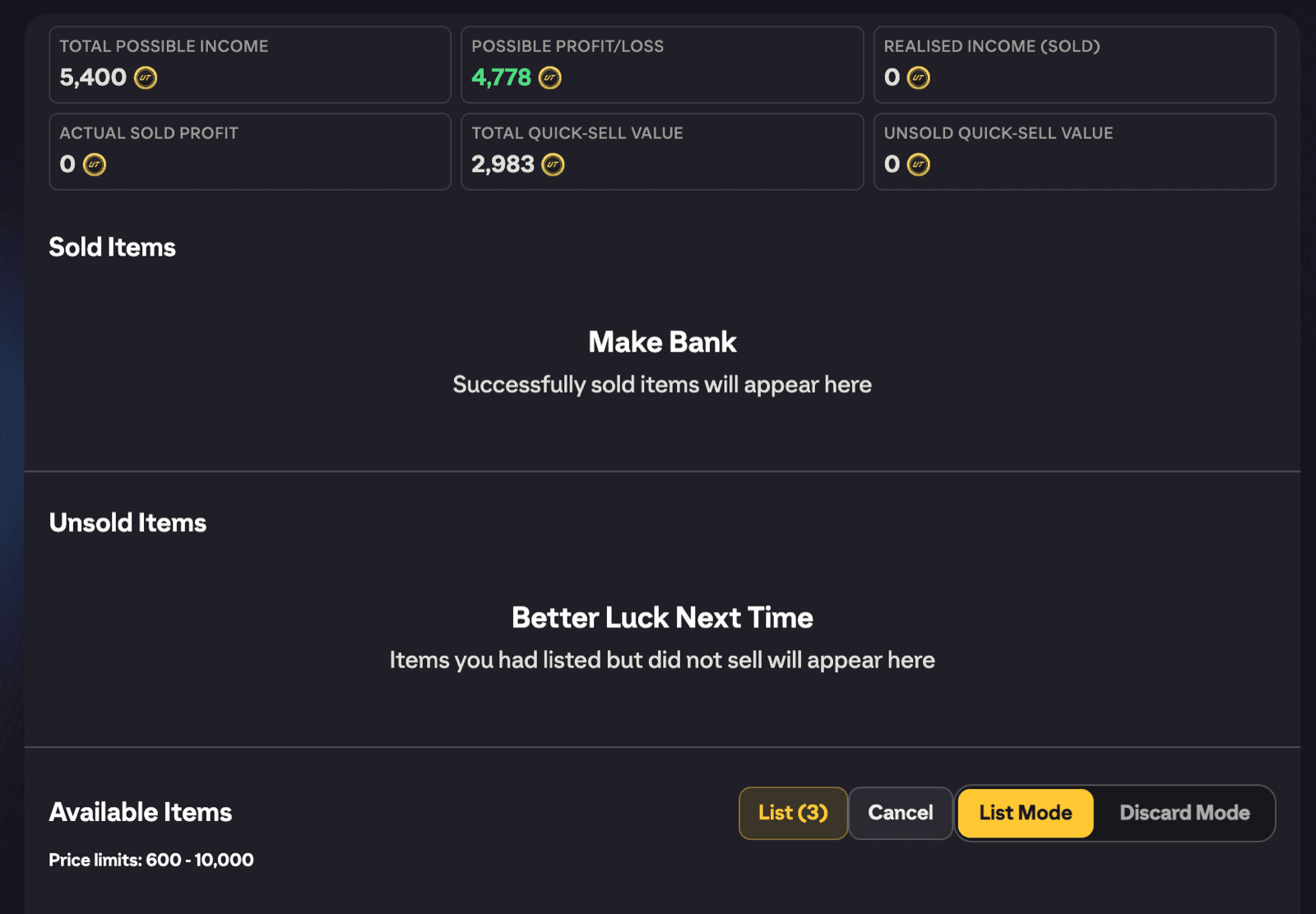
At the top of your transfer list, FUTGenie adds a summary panel with six cards, so you can see at a glance whether your trading is actually making coins. Profit cards are tinted green or red.
- Total possible income. What you'd earn if every listed item sold at its current price.
- Possible profit/loss. That income against what the items cost you.
- Realised income (sold). Coins from items that have actually sold.
- Actual sold profit. Your real profit on those sold items.
- Total quick-sell value. What the whole list is worth if you quick sold everything.
- Unsold quick-sell value. Quick-sell value of just the unsold items.
No setup needed, it's just there.
Transfer Targets summary
Your transfer targets get the same kind of panel, built for buying rather than selling:
- Coins in winning bids. What you have tied up in auctions you are currently winning.
- Profit if won. What those cards would make at their market price, after EA's 5% tax, minus your bids.
- Possible profit/loss. The total across winning bids and won items.
- Spent on won items. What you paid for the auctions you have won.
- Won items value. What those won cards are worth on the market.
- Won items profit. That value after tax, minus what you paid.
Outbid, watched and expired cards cost you nothing, so they add nothing. A card whose market price is still loading is left out of the profit figures until it arrives, rather than counting as a loss.
Send to club
Each section header on the transfer list gets a Send to club button that moves everything movable in that section into your club in one tap. You'll get a {count} sent to club confirmation. Items that would be duplicates stay put, and if everything is a duplicate you'll see All movable items are duplicates.
Select Multiple
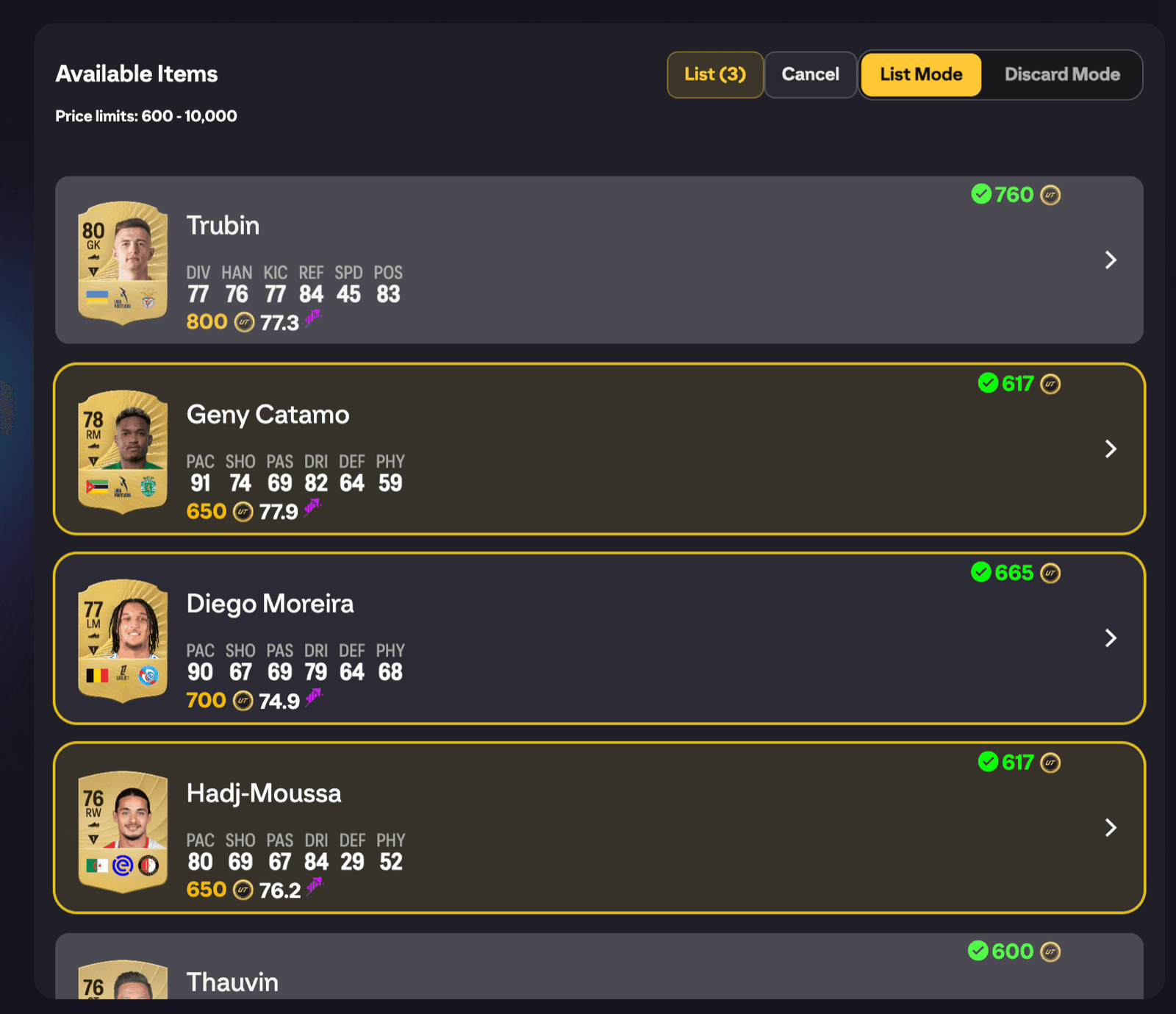
Next to Send to club in each section header is Select Multiple. Tap it and the header swaps to a mode toggle with three modes, List Mode, Market Price and Discard Mode, plus Select All, Cancel and a confirm button that counts your selection as you tap items. Switching modes clears your selection.
Select All takes every card the current mode can use and skips the rest, telling you how many it skipped. Once there is nothing left to add it turns into Clear.
Locked cards stay safe
Cards you have locked can't be selected in any mode, and Select All leaves them out, so a long-term investment can't be listed or quick sold by accident. To lock a card on your transfer list, open it and tap Lock player (the same lock that keeps a player out of the SBC solver). See Lock players.
List Mode: list many items at one price
Select the items you want to list, then hit List items. One catch: every selected item must share the same EA price limits (so the same rating band of gold fodder is fine, but you can't mix a 75 with an 89). If they don't match you'll see Selected items must have the same price limits.
The first time you use it, FUTGenie shows a one-time warning: "Using transfer market features may put your account at risk". Tap Continue to carry on.
FUTGenie then opens its own listing form:
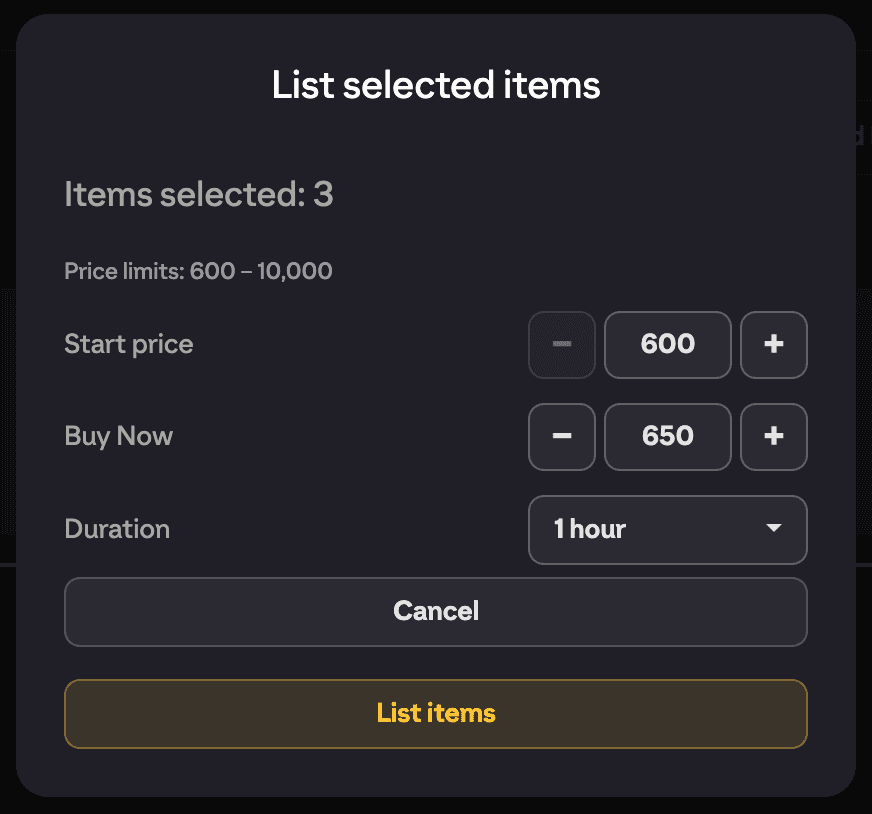
- Items selected and a Price limits hint showing the allowed range.
- Start price. The opening bid, stepped in valid coin increments.
- Buy Now. Defaults to one step above the minimum. Must be higher than the start price.
- Duration. 1 hour (default), 3 hours, 6 hours, 12 hours, 1 day or 3 days.
The form validates before it lists: prices must sit within the price limits and Buy Now must be greater than Start Price. On success you'll see Items listed.
Market Price: each card at its own price
Market Price lists every selected card at its own current market price, so a cheap silver and a big special can go up in the same run, with no shared price limits needed. Hit List and FUTGenie shows every card with the Buy Now it will list at before anything goes out.
- Adjust from market price: list a set percentage above or below the market, from -20% to +20%. FUTGenie remembers your choice.
- Duration: the same choices as List Mode.
Prices are snapped to EA's price steps, and a card priced below EA's minimum lists at the cheapest price EA allows. Cards with no market price are shown as no price and left alone.
Discard Mode: bulk quick sell
Switch to Discard Mode, select items, and hit Discard. A Quick sell items confirmation shows how many items are selected and the Total coins you'll get, along with the warning that matters: Discarded items cannot be recovered. Confirm with Quick sell and you'll see how many items were quick sold.
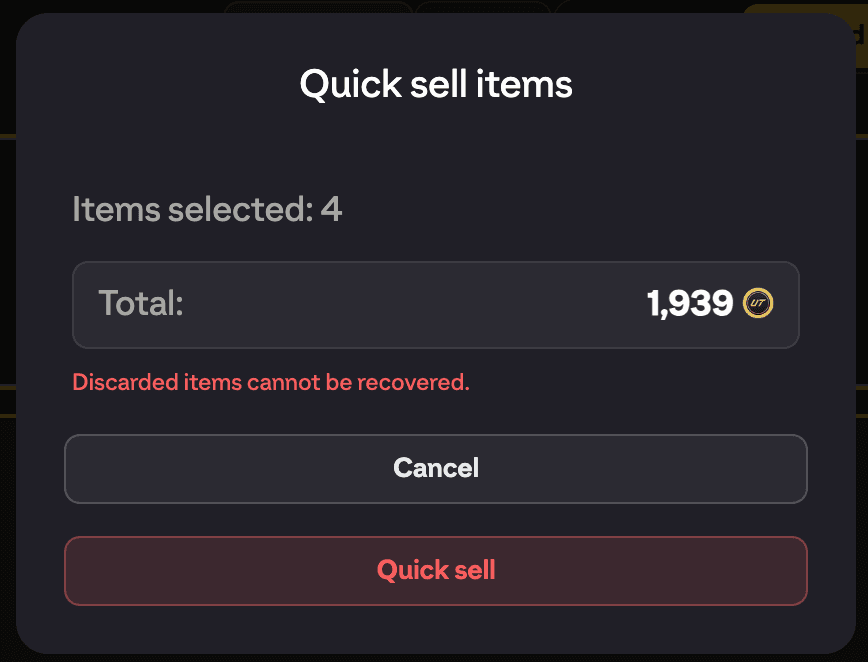
Items that can't be quick sold (or have no price limits) are skipped individually rather than blocking the whole batch.
The same tools in club search
Club search results get their own Select Multiple, with three modes and Select All:
- Transfer List (the default): sends the selected cards to your transfer list in one go.
- Market Price: lists each selected card at its own market price, with the same popup as the transfer list.
- Discard Mode: bulk quick sell straight from your club.
Transfer List and Market Price only take cards EA would let onto the transfer list, so untradeable cards are skipped, and they stop at the room left on your transfer list. Locked cards can't be selected in any mode here either.
Storage: the storage view also gets a Send to club button that bulk-moves storage items into your club, with the same duplicate handling as the transfer list version.